10 Powerful Revit Family Creation Techniques
10 Powerful Revit Family Creation Techniques are essential for anyone working in the BIM industry. Revit has become a powerful tool, and one of its core strengths is family creation. Mastering these techniques can significantly improve your workflow, accuracy, and overall project quality, whether you are a beginner or an experienced professional.
Many users still rely on basic modeling methods, but professionals understand that intelligent and efficient families make the real difference. In this blog, we will explore 10 Powerful Revit Family Creation Techniques to help you create flexible, optimized, and high-quality Revit families that stand out in real projects.

Why Revit Family Creation Skills Are Important
Before diving into the techniques, it is important to understand why learning 10 Powerful Revit Family Creation Techniques is so valuable.
- Saves time on repetitive tasks
- Improves BIM workflow efficiency
- Reduces errors in modeling
- Creates reusable content
- Helps in freelancing and online earning
If you want to grow in BIM or Revit-based careers, mastering 10 Powerful Revit Family Creation Techniques is not just helpful — it is necessary.
1. Build Strong Foundations with Reference Planes
What Are Reference Planes?
Reference planes act as the skeleton of your Revit family. They define structure and control geometry.
Why This Technique Is Powerful
Using reference planes correctly ensures that your family behaves predictably when parameters change.
Best Practices
- Always name your reference planes
- Use “Is Reference” property carefully
- Lock geometry to planes, not other geometry
Pro Insight
Every professional using 10 Powerful Revit Family Creation Techniques knows that poorly defined reference planes lead to unstable families.

2. Master Parametric Design
What Is Parametric Modeling?
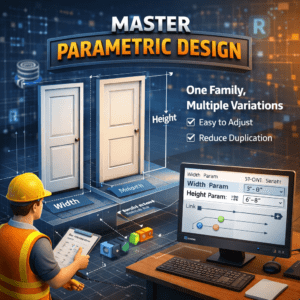
Parametric design allows your family to change size and shape based on defined parameters.
Benefits
- One family, multiple variations
- Easy modifications
- Reduced duplication
Implementation Tips
- Link dimensions to parameters
- Use meaningful parameter names
- Keep relationships logical
Example
Instead of creating multiple doors, create one parametric door family with adjustable width and height.
3. Use Constraints Carefully
Types of Constraints
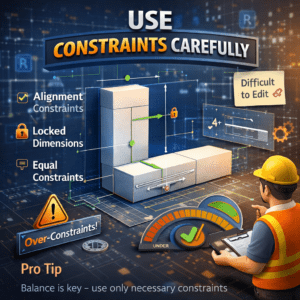
- Alignment constraints
- Locked dimensions
- Equal constraints
Why Constraints Matter
Constraints help maintain design intent and ensure that elements behave correctly.
Common Mistake
Over-constraining can break your family and make it difficult to edit.
Pro Tip
In 10 Powerful Revit Family Creation Techniques, balance is key — use only necessary constraints.
4. Implement Nested Families for Complex Designs
What Are Nested Families?
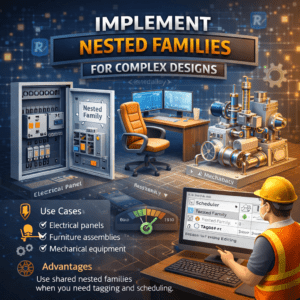
Nested families are families placed inside another family.
Use Cases
- Electrical panels
- Furniture assemblies
- Mechanical equipment
Advantages
- Reusability
- Better organization
- Simplified editing
Advanced Tip
Use shared nested families when you need tagging and scheduling.
5. Apply Formulas for Smart Behavior
Why Use Formulas?
Formulas allow your family to respond intelligently to changes.
Examples
- Automatic resizing
- Conditional visibility
- Logical relationships
Sample Formula
Advanced Use
Use IF conditions to control behavior:
This is one of the most impactful parts of 10 Powerful Revit Family Creation Techniques.

6. Control Visibility for Better Performance
Why Visibility Matters
Controlling visibility helps reduce unnecessary details and improves performance.
How to Implement
- Use Yes/No parameters
- Assign visibility to detail levels
- Control views (Plan, Elevation, 3D)
Example
Show detailed components only in Fine view.

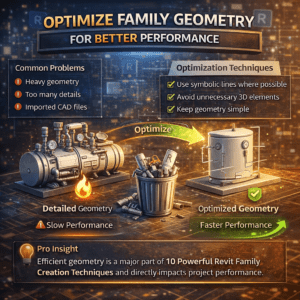
7. Optimize Family Geometry
Common Problems
- Heavy geometry
- Too many details
- Imported CAD files
Optimization Techniques
- Use symbolic lines where possible
- Avoid unnecessary 3D elements
- Keep geometry simple
Pro Insight
Efficient geometry is a major part of 10 Powerful Revit Family Creation Techniques and directly impacts project performance.
8. Use Shared Parameters for Standardization
What Are Shared Parameters?
Shared parameters allow consistent data across multiple families and projects.
Benefits
- Better scheduling
- Consistent information
- Improved collaboration
Examples
- Manufacturer
- Model number
- Cost
Best Practice
Maintain a standard shared parameter file for all projects.

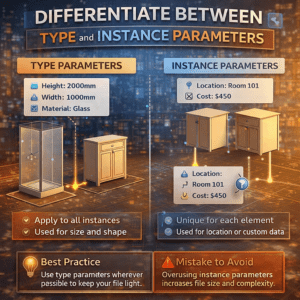
9. Differentiate Between Type and Instance Parameters
Type Parameters
- Apply to all instances
- Used for size and shape
Instance Parameters
- Unique for each element
- Used for location or custom data
Best Practice
Use type parameters wherever possible to keep your file light.
Mistake to Avoid
Overusing instance parameters increases file size and complexity.
10. Follow Naming Standards and Organization
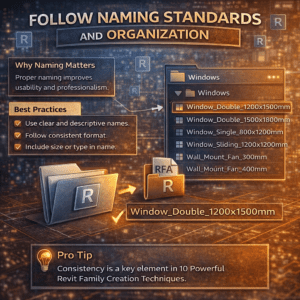
Why Naming Matters
Proper naming improves usability and professionalism.
Best Practices
- Use clear and descriptive names
- Follow consistent format
- Include size or type in name
Example
Pro Tip
Consistency is a key element in 10 Powerful Revit Family Creation Techniques.
Advanced Strategies to Improve Your Workflow
Use Detail Levels Effectively
Create different representations for:
- Coarse
- Medium
- Fine
This improves both performance and clarity.
Test Your Families Thoroughly
Checklist
- Flex all parameters
- Check constraints
- Test in real project environment
Create a Personal Revit Library
If you want to grow professionally:
- Build reusable families
- Organize them properly
- Upload to your website (great idea for your project 👍)
This can become a source of income in the future.
Common Mistakes to Avoid
1. Overcomplicating Families
Keep designs simple and efficient.
2. Ignoring Parameters
Without parameters, your family loses flexibility.
3. Skipping Testing
Always test before final use.
4. Poor File Management
Unorganized files waste time and create confusion.
Conclusion
Mastering 10 Powerful Revit Family Creation Techniques is one of the best investments you can make in your BIM career. These techniques not only improve your modeling skills but also enhance your efficiency, reduce errors, and increase your professional value.
By applying these 10 Powerful Revit Family Creation Techniques, you can create smart, flexible, and high-performance families that stand out in the industry. Whether you are working on freelance platforms, building your own Revit library, or handling professional BIM projects, these techniques will help you succeed.
Start implementing these 10 Powerful Revit Family Creation Techniques today and take your Revit expertise to the next level.