Working in Revit on large-scale models can feel like a battle against time. You start your day with a clear plan, but slow loading, laggy views, and delayed commands eat into your productivity. If you’ve faced this, you already know how frustrating it can be.
If you’ve ever opened a Revit model and had to wait… and wait… and then deal with lag while simply moving around, you already understand how frustrating a heavy file can be. It slows down your workflow, wastes time, and in some cases even leads to crashes or corrupted files. In real project environments, especially when deadlines are tight, this becomes a serious issue.
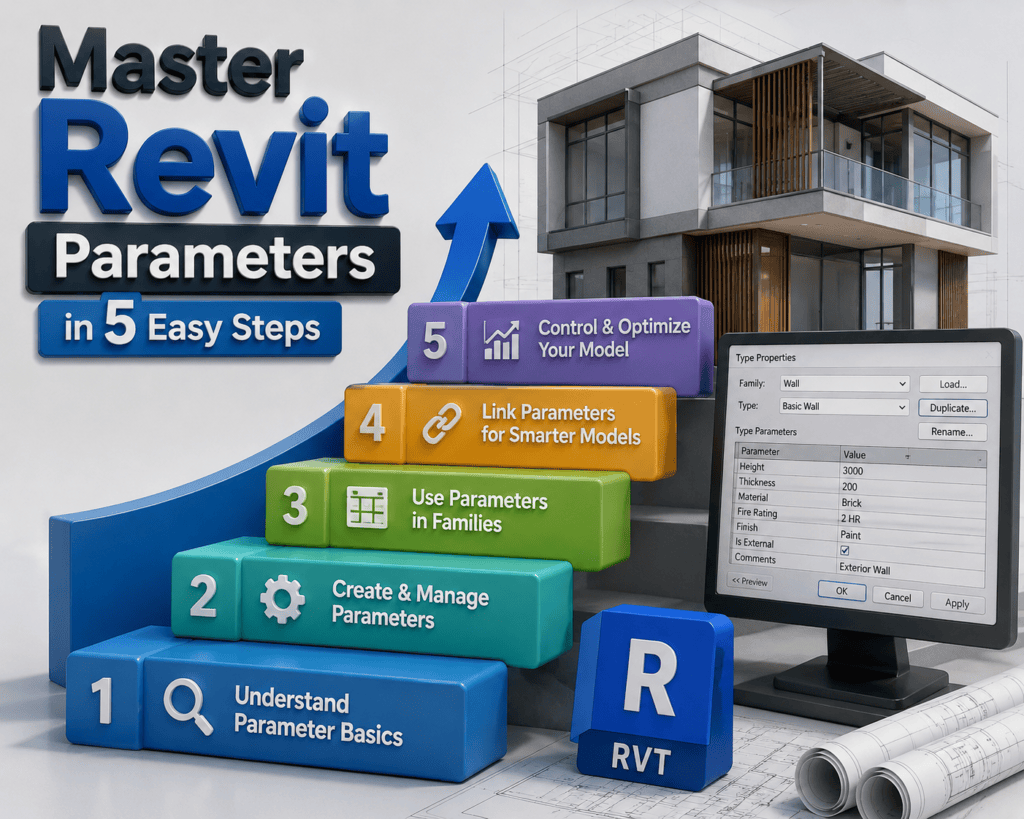
Understanding parameters in Revit is one of the most important skills for anyone working in BIM. Many users struggle to decide when to use shared parameters and when to rely on project parameters. This confusion often leads to messy data, broken tags, and inefficient workflows.
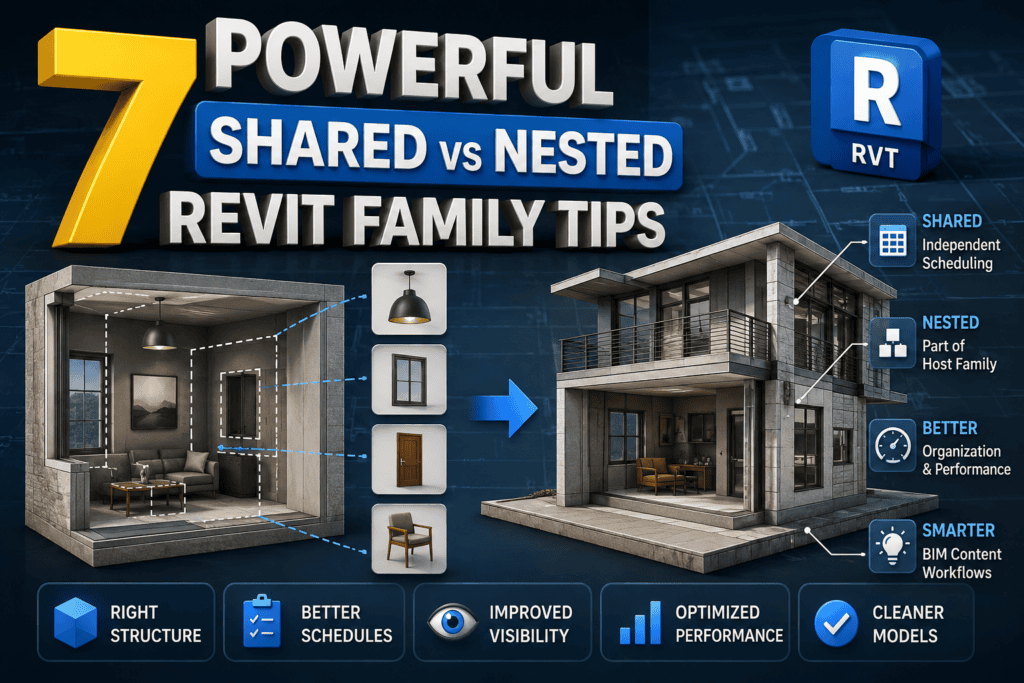
Nested families in Revit can completely transform how you build, manage, and scale your BIM models. If you’ve ever struggled with repeating elements, complex assemblies, or making your families more flexible, then learning them is essential—and that’s exactly where these 7 Powerful Tips for Nested Families in Revit come in.
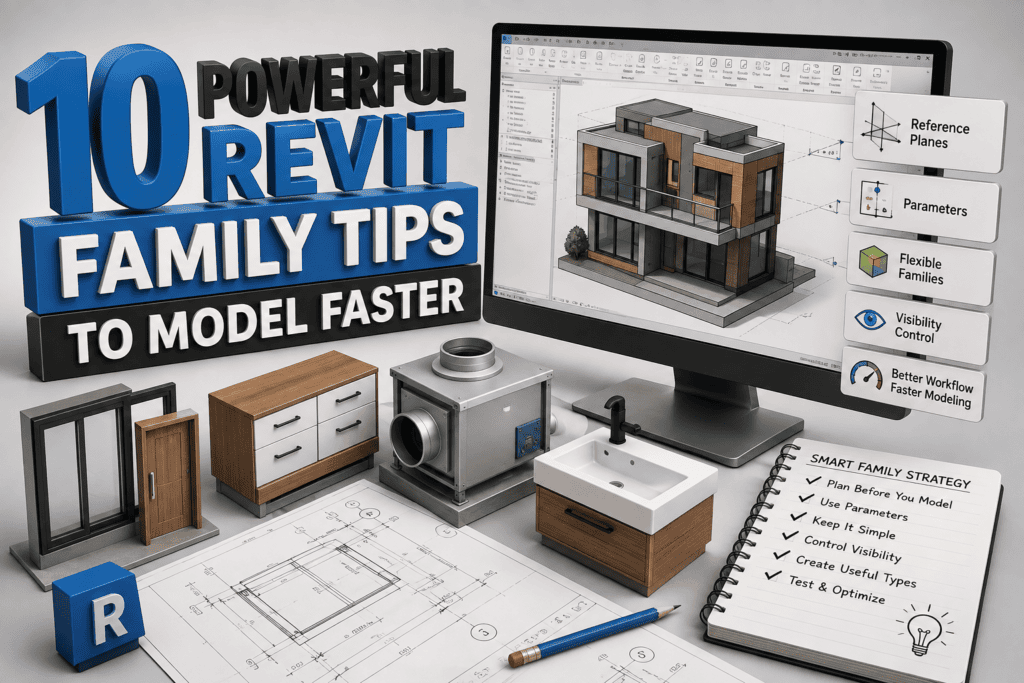
10 Powerful Revit Family Creation Techniques are essential for anyone working in the BIM industry. Revit has become a powerful tool, and one of its core strengths is family creation. Mastering these techniques can significantly improve your workflow, accuracy, and overall project quality, whether you are a beginner or an experienced professional.
In the Architecture, Engineering, and Construction (AEC) industry, AutoCAD and Revit are two of the most widely used design tools. Many projects start with AutoCAD drawings and later move into Revit for Building Information Modeling (BIM), which makes it important for professionals to understand How to Link AutoCAD & Revit Files efficiently.
Worksets & Collaboration in Revit have transformed the way architects, engineers, and designers work together on modern construction projects. Today’s BIM projects are complex and require multiple professionals to collaborate on a single model at the same time. With the help of Worksets & Collaboration in Revit, teams can efficiently manage shared models, coordinate their work, and avoid overwriting each other’s changes while working in a collaborative BIM environment.
Revit View Templates Explained helps users understand how to maintain consistent graphics and visibility settings across multiple views in Autodesk Revit. In large projects with hundreds of views, managing visibility settings, detail levels, view scales, filters, and graphic overrides individually can quickly become difficult. Without using view templates, manually adjusting these settings for every view can consume significant time and increase the risk of inconsistencies in project documentation.
If you are learning How to Export Revit Schedules to Excel, it’s important to first understand how powerful schedules are inside Revit. In Building Information Modeling (BIM), schedules allow you to extract quantities, track materials, review equipment data, and manage project information directly from your model before exporting it to Excel for further analysis.
Revit schedules are one of the most powerful tools inside a BIM workflow. While many users focus heavily on modeling and 3D visualization, the real strength of Building Information Modeling lies in data. Schedules transform model elements into organized, live, and intelligent tables that update automatically as your project evolves.
When we talk about professional BIM documentation, modeling is only half of the job. The real clarity of a project comes from how well it is documented. In Autodesk Revit, annotations play a critical role in turning a 3D model into clear, understandable construction drawings.
Understanding How to Create Sections & Callouts Properly is one of the most essential skills in architectural drafting and BIM documentation. Floor plans alone cannot fully explain a building’s design intent. To clearly communicate vertical relationships, detailed construction elements, and complex connections, you must know how to create sections and callouts properly with accurate placement and clear detailing.