10 Proven Tips to Optimize Revit File Size
If you’ve ever opened a Revit model and had to wait… and wait… and then deal with lag while simply moving around, you already understand how frustrating a heavy file can be. It slows down your workflow, wastes time, and in some cases even leads to crashes or corrupted files. In real project environments, especially when deadlines are tight, this becomes a serious issue.
The truth is, large file sizes are not always because of “big projects.” Most of the time, they happen because of poor file management, unnecessary elements, or inefficient modeling habits. The good news is that you can fix this. In this guide, we’ll go through 10 Proven Tips to Optimize Revit File Size that are practical, easy to apply, and based on real working experience—not theory.

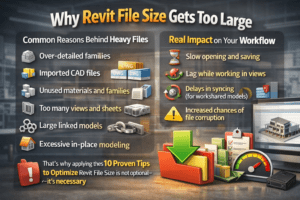
Why Revit File Size Gets Too Large
Before improving anything, it’s important to understand what causes the problem.
Common Reasons Behind Heavy Files
- Over-detailed families
- Imported CAD files with too many layers
- Unused materials and families
- Too many views and sheets
- Large linked models
- Excessive in-place modeling
Real Impact on Your Workflow
When your file becomes heavy, you will notice:
- Slow opening and saving
- Lag while working in views
- Delays in syncing (for workshared models)
- Increased chances of file corruption
That’s why applying these 10 Proven Tips to Optimize Revit File Size is not optional—it’s necessary.
1. Purge Unused Content Regularly
One of the easiest ways to reduce file size is to remove everything that is not being used.
What Does Purge Remove?
- Unused families
- Materials
- Line styles
- Fill patterns
How to Do It
Go to:
Manage → Purge Unused
Run it multiple times until no more items appear.
This simple step can instantly reduce file size and is one of the most effective actions in the 10 Proven Tips to Optimize Revit File Size.

2. Use Lightweight and Clean Families
Families are one of the biggest contributors to file size.
Problem with Heavy Families
Many downloaded families include:
- Extra geometry
- Nested components
- Too many parameters
Best Practice
- Use simple geometry
- Remove unnecessary details
- Prefer non-parametric families when possible
Clean families = faster performance.

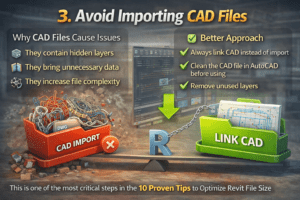
3. Avoid Importing CAD Files
Imported CAD files are one of the worst offenders.
Why CAD Files Cause Issues
- They contain hidden layers
- They bring unnecessary data
- They increase file complexity
Better Approach
- Always link CAD instead of import
- Clean the CAD file in AutoCAD before using
- Remove unused layers
This is one of the most critical steps in the 10 Proven Tips to Optimize Revit File Size.
4. Limit In-Place Families
In-place families are useful but should not be overused.
Why They Are Problematic
- Heavier than loadable families
- Harder to edit and manage
- Increase file complexity
What to Do Instead
- Use standard loadable families
- Convert in-place elements where possible

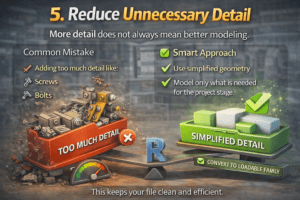
5. Reduce Unnecessary Detail
More detail does not always mean better modeling.
Common Mistake
Adding too much detail like:
- Screws
- Bolts
- Small decorative elements
Smart Approach
- Use simplified geometry
- Model only what is needed for the project stage
This keeps your file clean and efficient.
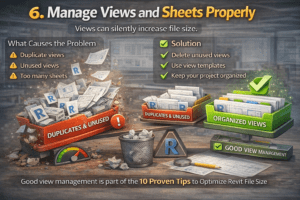
6. Manage Views and Sheets Properly
Views can silently increase file size.
What Causes the Problem
- Duplicate views
- Unused views
- Too many sheets
Solution
- Delete unused views
- Use view templates
- Keep your project organized
Good view management is part of the 10 Proven Tips to Optimize Revit File Size.
7. Audit Your Model Frequently
Auditing helps clean hidden issues in your file.
When to Audit
- When file becomes slow
- Before sharing the file
- Before final submission
How to Audit
- Open Revit
- Check “Audit” option before opening
It helps fix internal errors and improves file health.

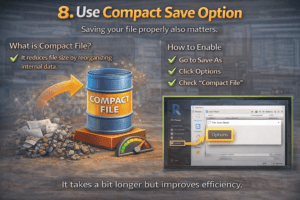
8. Use Compact Save Option
Saving your file properly also matters.
What is Compact File?
It reduces file size by reorganizing internal data.
How to Enable
- Go to Save As
- Click Options
- Check “Compact File”
It takes a bit longer but improves efficiency.
9. Manage Linked Models Carefully
Linked files are useful but must be controlled.
Common Issues
- Too many links
- Unnecessary linked files
- Heavy external models
Best Practices
- Unload links when not needed
- Use worksets to control visibility
- Keep only essential links active
This is an important part of the 10 Proven Tips to Optimize Revit File Size.

10. Use Worksets Smartly
Worksets are not only for collaboration—they also improve performance.
How They Help
- Control what loads in the model
- Reduce memory usage
- Improve opening time
Practical Use
- Turn off unnecessary worksets
- Open only required elements

Bonus Tips for Better Performance
Small Changes That Make Big Difference
- Delete unused materials
- Remove high-resolution images
- Use section boxes in 3D
- Close unused views
Weekly Maintenance Routine
- Purge unused
- Audit model
- Compact save
- Review families
Following this routine keeps your file healthy.
Common Mistakes to Avoid
What Most Users Do Wrong
- Importing CAD instead of linking
- Using heavy downloaded families
- Ignoring file cleanup
- Keeping unnecessary views
Result of These Mistakes
- Slow performance
- Larger file size
- Increased frustration
Avoiding these mistakes is just as important as applying the 10 Proven Tips to Optimize Revit File Size.
Final Thoughts
Optimizing a Revit file is not something you do once—it’s a continuous process throughout your project. Simple habits like purging unused elements, using clean families, and managing views properly can significantly improve performance over time. Following the 10 Proven Tips to Optimize Revit File Size helps you stay consistent and avoid common issues that slow down your work.
By applying these 10 Proven Tips to Optimize Revit File Size, you can keep your models lightweight, organized, and easy to handle. Whether you are just starting out or already experienced in BIM, these practices will improve your workflow and reduce unnecessary delays.
In the end, a well-managed model means less stress and better productivity. Start using these 10 Proven Tips to Optimize Revit File Size today, and you’ll quickly see a noticeable improvement in your Revit projects.
For more information click here