10 Revit Hacks to Speed Up Large Projects
Working in Revit on large-scale models can feel like a battle against time. You start your day with a clear plan, but slow loading, laggy views, and delayed commands eat into your productivity. If you’ve faced this, you already know how frustrating it can be. The good news is that with the right approach, you can dramatically improve performance. In this guide, we’ll go through 10 Revit Hacks to Speed Up Large Projects and help you regain control of your workflow.

Why Large Revit Projects Become Slow
Before we jump into solutions, it’s important to understand the root of the problem. Revit models grow heavier over time due to:
- Over-detailed families
- Excessive imported CAD files
- Too many views and sheets
- Large linked models
- Poor file maintenance
When these issues pile up, even powerful systems start struggling. That’s why applying 10 Revit Hacks to Speed Up Large Projects is not optional—it’s essential for anyone working on complex BIM models.
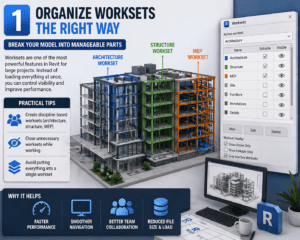
1. Organize Worksets the Right Way
Break Your Model into Manageable Parts
Worksets are one of the most powerful features in Revit for large projects. Instead of loading everything at once, you can control visibility and improve performance.
Practical Tips
- Create discipline-based worksets (architecture, structure, MEP)
- Close unnecessary worksets while working
- Avoid putting everything into a single workset
This method is one of the core strategies in 10 Revit Hacks to Speed Up Large Projects, especially for team-based environments.
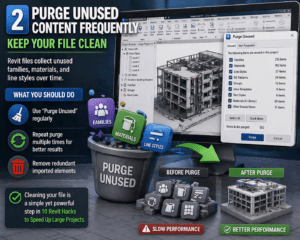
2. Purge Unused Content Frequently
Keep Your File Clean
Revit files collect unused families, materials, and line styles over time.
What You Should Do
- Use “Purge Unused” regularly
- Repeat purge multiple times for better results
- Remove redundant imported elements
Cleaning your file is a simple yet powerful step in 10 Revit Hacks to Speed Up Large Projects.
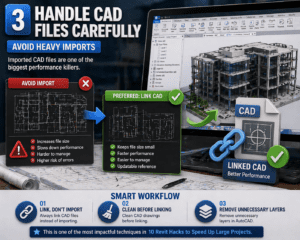
3. Handle CAD Files Carefully
Avoid Heavy Imports
Imported CAD files are one of the biggest performance killers.
Smart Workflow
- Always link CAD files instead of importing
- Clean CAD drawings before linking
- Remove unnecessary layers in AutoCAD
This is one of the most impactful techniques in 10 Revit Hacks to Speed Up Large Projects.
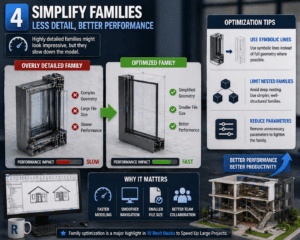
4. Simplify Families
Less Detail, Better Performance
Highly detailed families might look impressive, but they slow down the model.
Optimization Tips
- Use symbolic lines instead of full geometry where possible
- Limit nested families
- Reduce parameters
Family optimization is a major highlight in 10 Revit Hacks to Speed Up Large Projects.
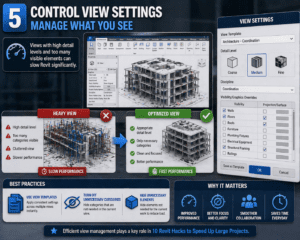
5. Control View Settings
Manage What You See
Views with high detail levels and too many visible elements can slow Revit significantly.
Best Practices
- Use view templates
- Turn off unnecessary categories
- Hide elements not needed for current work
Efficient view management plays a key role in 10 Revit Hacks to Speed Up Large Projects.
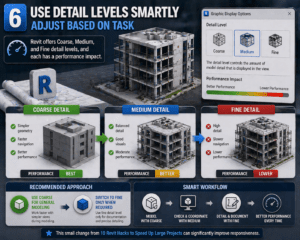
6. Use Detail Levels Smartly
Adjust Based on Task
Revit offers Coarse, Medium, and Fine detail levels, and each has a performance impact.
Recommended Approach
- Use Coarse for general modeling
- Switch to Fine only when required for detailing
This small change from 10 Revit Hacks to Speed Up Large Projects can significantly improve responsiveness.
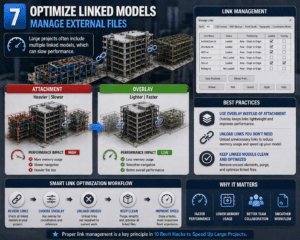
7. Optimize Linked Models
Manage External Files
Large projects often include multiple linked models, which can slow performance.
Optimization Techniques
- Use “Overlay” instead of “Attachment” where possible
- Unload links you don’t need
- Keep linked models clean and optimized
Proper link management is a key principle in 10 Revit Hacks to Speed Up Large Projects.
8. Limit Use of Groups
Groups Can Be Risky
While groups are useful, excessive use can cause performance issues.
Better Alternatives
- Convert groups into families
- Avoid deep nesting
- Use groups only where necessary
This often-overlooked tip is an important part of 10 Revit Hacks to Speed Up Large Projects.

9. Improve Hardware and Settings
Your System Matters
Even the best optimization techniques need proper hardware support.
Key Suggestions
- Use SSD instead of HDD
- Ensure sufficient RAM (16GB minimum, 32GB recommended)
- Enable hardware acceleration
Hardware optimization complements the strategies in 10 Revit Hacks to Speed Up Large Projects.

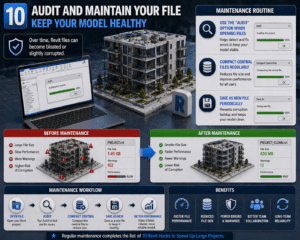
10. Audit and Maintain Your File
Keep Your Model Healthy
Over time, Revit files can become bloated or slightly corrupted.
Maintenance Routine
- Use the “Audit” option when opening files
- Compact central files regularly
- Save as new file periodically
Regular maintenance completes the list of 10 Revit Hacks to Speed Up Large Projects.
Extra Tips for Better Performance
Beyond the main hacks, here are additional tips that can further improve your workflow:
- Disable unnecessary add-ins
- Restart Revit after long sessions
- Avoid opening multiple heavy files at once
- Use “Temporary Hide/Isolate” instead of permanent visibility changes
All these support the main ideas behind 10 Revit Hacks to Speed Up Large Projects.
Common Mistakes That Slow Down Revit
Even experienced users unknowingly create performance issues:
- Using overly detailed families everywhere
- Importing unclean CAD files
- Ignoring file cleanup
- Keeping all worksets open
Avoiding these mistakes strengthens the effectiveness of 10 Revit Hacks to Speed Up Large Projects.
Real Benefits You’ll Notice
Once you apply 10 Revit Hacks to Speed Up Large Projects, you’ll start seeing real improvements:
- Faster file opening and saving
- Smooth navigation in 3D views
- Reduced crashes and lag
- Better collaboration with teams
These improvements can save hours of work every week.
Final Thoughts
Large Revit projects don’t have to slow you down. With the right habits and smart optimization, you can maintain speed and efficiency even in the most complex models. The key is consistency—apply these techniques regularly rather than waiting for problems to appear.
By following these 10 Revit Hacks to Speed Up Large Projects, you’re not just improving performance—you’re upgrading your entire workflow. Whether you’re a beginner or an experienced BIM professional, these strategies will help you work smarter, not harder.
For more information click here