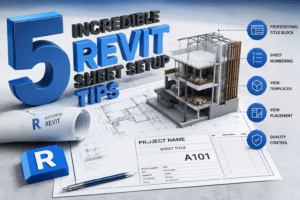
5 Incredible Revit Sheet Setup Tips
Creating professional drawing sheets is one of the most important skills for any Revit user. Whether you work on architectural, structural, or MEP projects, a well-organized sheet setup improves project coordination, enhances presentation quality, and reduces documentation errors. In this guide, we will explore 5 Incredible Revit Sheet Setup Tips that can help you create clean, efficient, and professional drawing sets.
Many BIM professionals spend countless hours modeling but overlook the importance of documentation. By applying these 5 Incredible Revit Sheet Setup Tips, you can significantly improve the quality of your project deliverables and streamline your workflow.
Why Revit Sheet Setup Is Important
Before discussing the 5 Incredible Revit Sheet Setup Tips, it is important to understand why sheet setup matters.
A professional sheet setup helps:
- Improve drawing organization
- Maintain consistency across projects
- Reduce coordination mistakes
- Save time during revisions
- Create professional construction documents
Companies that follow the 5 Incredible Revit Sheet Setup Tips often produce higher-quality documentation and experience fewer issues during project reviews.
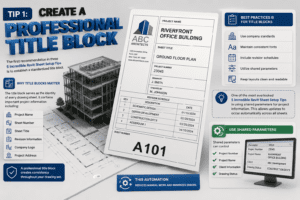
Tip 1: Create a Professional Title Block
The first recommendation in these 5 Incredible Revit Sheet Setup Tips is to establish a standardized title block.
Why Title Blocks Matter
The title block serves as the identity of every drawing sheet. It contains important project information including:
- Project Name
- Sheet Number
- Sheet Title
- Revision Information
- Company Logo
- Project Address
A professional title block creates consistency throughout your drawing set.
Best Practices for Title Blocks
When creating title blocks:
- Use company standards
- Maintain consistent fonts
- Include revision schedules
- Utilize shared parameters
- Keep layouts clean and readable
One of the most overlooked 5 Incredible Revit Sheet Setup Tips is using shared parameters for project information. This allows updates to occur automatically across all sheets.
Use Shared Parameters
Shared parameters can control:
- Project Number
- Project Name
- Client Information
- Drawing Status
This automation reduces manual work and minimizes errors.
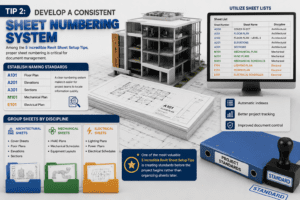
Tip 2: Develop a Consistent Sheet Numbering System
Among the 5 Incredible Revit Sheet Setup Tips, proper sheet numbering is critical for document management.
Establish Naming Standards
A typical numbering structure might include:
- A101 Floor Plan
- A201 Elevations
- A301 Sections
- M101 Mechanical Plan
- E101 Electrical Plan
A clear numbering system makes it easier for project teams to locate information quickly.
Group Sheets by Discipline
Professional BIM projects often contain hundreds of sheets. Organizing them by discipline improves navigation.
Architectural Sheets
- Cover Sheets
- Floor Plans
- Elevations
- Sections
Mechanical Sheets
- HVAC Plans
- Mechanical Schedules
- Equipment Layouts
Electrical Sheets
- Lighting Plans
- Power Plans
- Electrical Schedules
One of the most valuable 5 Incredible Revit Sheet Setup Tips is creating standards before the project begins rather than organizing sheets later.
Utilize Sheet Lists
Sheet lists provide:
- Automatic indexes
- Better project tracking
- Improved document control
Implementing this recommendation from the 5 Incredible Revit Sheet Setup Tips can save substantial time on large projects.
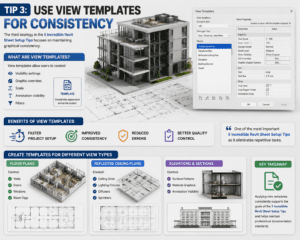
Tip 3: Use View Templates for Consistency
The third strategy in the 5 Incredible Revit Sheet Setup Tips focuses on maintaining graphical consistency.
What Are View Templates?
View templates allow users to control:
- Visibility settings
- Graphic overrides
- Scale
- Annotation visibility
- Filters
Instead of adjusting every view manually, templates standardize appearance across the project.
Benefits of View Templates
Using view templates offers:
- Faster project setup
- Improved consistency
- Reduced errors
- Better quality control
Many experienced BIM managers consider this one of the most important 5 Incredible Revit Sheet Setup Tips because it eliminates repetitive tasks.
Create Templates for Different View Types
Floor Plans
Control:
- Walls
- Doors
- Windows
- Room Tags
Reflected Ceiling Plans
Control:
- Ceiling Grids
- Lighting Fixtures
- Diffusers
- Sprinklers
Elevations and Sections
Control:
- Surface Patterns
- Material Graphics
- Annotation Visibility
Applying view templates consistently supports the goals of the 5 Incredible Revit Sheet Setup Tips and helps maintain professional documentation standards.
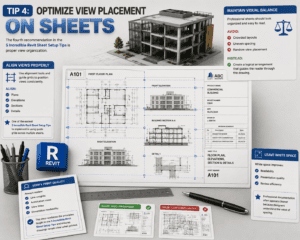
Tip 4: Optimize View Placement on Sheets
The fourth recommendation in the 5 Incredible Revit Sheet Setup Tips is proper view organization.
Maintain Visual Balance
Professional sheets should look organized and easy to read.
Avoid:
- Crowded layouts
- Uneven spacing
- Random view placement
Instead, create a logical arrangement that guides the reader through the drawing.
Align Views Properly
Use alignment tools and guide grids to position views consistently.
Align:
- Plans
- Elevations
- Sections
- Details
One of the easiest 5 Incredible Revit Sheet Setup Tips to implement is using guide grids across multiple sheets.
Leave White Space
White space improves:
- Readability
- Presentation quality
- Review efficiency
Professional documentation often appears cleaner because designers understand the value of spacing.
Verify Print Quality
Always review:
- Line weights
- Annotation sizes
- View titles
- Dimension readability
This step reinforces the principles taught in the 5 Incredible Revit Sheet Setup Tips and ensures drawings remain clear when printed.
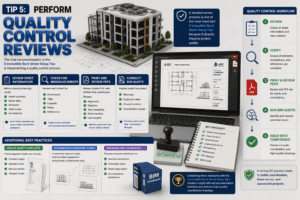
Tip 5: Perform Quality Control Reviews
The final recommendation in the 5 Incredible Revit Sheet Setup Tips is implementing a quality control process.
Review Sheet Information
Before issuing drawings, verify:
- Sheet numbers
- Sheet titles
- Revisions
- View scales
- Annotations
Even minor mistakes can cause major coordination problems.
Check for Missing Elements
Review each sheet for:
- Dimensions
- Tags
- Legends
- Notes
- References
A detailed review process is one of the most important 5 Incredible Revit Sheet Setup Tips because it directly impacts project quality.
Print and Review PDFs
Always create PDF sets before final submission.
Review:
- Alignment
- Graphics
- Text readability
- Sheet borders
- Line weights
This allows you to identify issues that may not be visible within Revit.
Conduct BIM Audits
Regular audits help detect:
- Warnings
- Duplicate views
- Unused content
- Coordination issues
Following this recommendation from the 5 Incredible Revit Sheet Setup Tips can prevent costly errors later in the project lifecycle.
Additional Best Practices
Beyond the 5 Incredible Revit Sheet Setup Tips, there are several advanced techniques that can further improve documentation quality.
Create Sheet Templates
Preconfigured sheets can include:
- Company logos
- Standard notes
- Revision blocks
- Viewport styles
This helps maintain consistency across projects.
Standardize Viewport Types
Customized viewport styles improve sheet appearance and provide a professional look.
Maintain BIM Standards
Develop company standards for:
- Naming conventions
- Annotation styles
- Sheet organization
- Documentation procedures
Combining these standards with the 5 Incredible Revit Sheet Setup Tips creates a highly efficient documentation workflow.
Common Mistakes to Avoid
While implementing the 5 Incredible Revit Sheet Setup Tips, avoid these common mistakes:
Overcrowded Sheets
Too much information on a single sheet reduces readability.
Inconsistent Graphics
Different line weights and annotation styles create confusion.
Poor Organization
Unclear sheet numbering slows down project navigation.
Lack of Reviews
Skipping quality control often results in documentation errors.
Avoiding these mistakes helps maximize the effectiveness of the 5 Incredible Revit Sheet Setup Tips.
Conclusion
Professional documentation is a key component of successful BIM projects. The 5 Incredible Revit Sheet Setup Tips discussed in this guide can help you create organized, consistent, and professional drawing sets that meet industry standards.
To summarize the 5 Incredible Revit Sheet Setup Tips:
- Create a professional title block.
- Develop a consistent sheet numbering system.
- Use view templates for graphical consistency.
- Optimize view placement on sheets.
- Perform thorough quality control reviews.
By applying these 5 Incredible Revit Sheet Setup Tips on every project, you will improve productivity, reduce documentation errors, and produce high-quality Revit drawing sets that clients and project teams can rely on.
For more information click here.