7 Powerful Revit Family Fixes
Introduction
Every successful Building Information Modeling (BIM) project starts with well-built Revit families. Whether you’re creating architectural components, furniture, lighting fixtures, doors, windows, or MEP equipment, the quality of your Revit families directly affects model performance, documentation accuracy, and collaboration across project teams.
Unfortunately, many Revit users rely on downloaded content without checking whether those families follow BIM best practices. Poorly constructed families often contain unnecessary geometry, incorrect parameters, oversized file sizes, and inconsistent naming conventions. These issues can slow down projects, create scheduling errors, and make coordination more difficult.
This guide explores 7 Powerful Revit Family Fixes that every BIM professional should implement. By applying these proven techniques, you can build faster, cleaner, and more reliable Revit families that improve productivity and deliver better project outcomes.
Why Revit Family Quality Matters
A Revit family is much more than a simple 3D object. It stores geometry, parameters, materials, visibility settings, connectors, and metadata. Every poorly designed family adds unnecessary weight to your project.
Implementing 7 Powerful Revit Family Fixes helps create efficient BIM content that loads quickly, schedules accurately, and performs reliably throughout every project phase.
Benefits of Optimized Revit Families
- Faster model performance
- Smaller project file sizes
- Better collaboration
- Accurate schedules
- Easier maintenance
- Improved documentation
- Higher BIM standards
1. Simplify Family Geometry
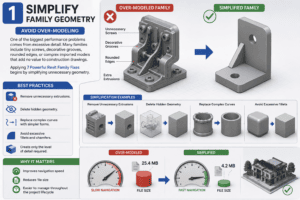
Avoid Over-Modeling
One of the biggest performance problems comes from excessive detail. Many families include tiny screws, decorative grooves, rounded edges, or complex imported models that add no value to construction drawings.
Applying 7 Powerful Revit Family Fixes begins by simplifying unnecessary geometry.
Best Practices
- Remove unnecessary extrusions.
- Delete hidden geometry.
- Replace complex curves with simpler forms.
- Avoid excessive fillets and chamfers.
- Create only the level of detail required.
Why It Matters
Simplified geometry improves navigation speed, reduces file size, and makes models easier to manage throughout the project lifecycle.
2. Build Smarter Parametric Families
Use Parameters Effectively
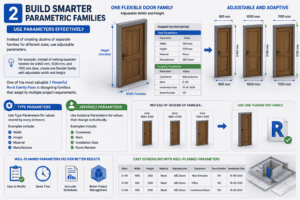
Instead of creating dozens of separate families for different sizes, use adjustable parameters.
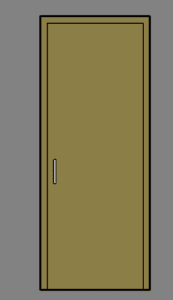
For example, instead of making separate families for a 900 mm, 1000 mm, and 1100 mm door, create one flexible family with adjustable width and height.
One of the most valuable 7 Powerful Revit Family Fixes is designing families that adapt to multiple project requirements.
Type Parameters
Use Type Parameters for values shared by every instance.
Examples include:
- Width
- Height
- Material
- Manufacturer
Instance Parameters
Use Instance Parameters for values that change individually.
Examples include:
- Comments
- Mark
- Installation Date
- Room Number
Well-planned parameters make families easier to maintain and schedule.
3. Organize Reference Planes Properly
Build a Strong Foundation
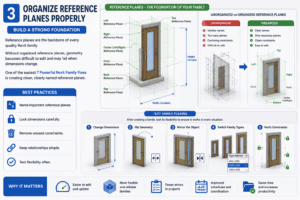
Reference planes are the backbone of every quality Revit family.
Without organized reference planes, geometry becomes difficult to edit and may fail when dimensions change.
One of the easiest 7 Powerful Revit Family Fixes is creating clean, clearly named reference planes.
Best Practices
- Name important reference planes.
- Lock dimensions carefully.
- Remove unused constraints.
- Keep relationships simple.
- Test flexibility often.
Test Family Flexing
After creating a family:
- Change dimensions.
- Flip geometry.
- Mirror the object.
- Switch family types.
- Verify constraints.
Proper testing prevents future project errors.
4. Optimize Visibility Settings
Display Only What Is Needed
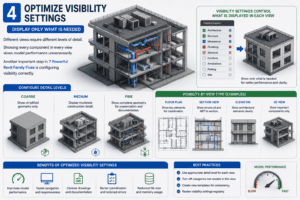
Different views require different levels of detail.
Showing every component in every view slows model performance unnecessarily.
Another important step in 7 Powerful Revit Family Fixes is configuring visibility correctly.
Configure Detail Levels
Coarse
Show simplified geometry only.
Medium
Display moderate construction detail.
Fine
Show complete geometry for presentation and documentation.
Using visibility settings correctly improves both performance and drawing clarity.
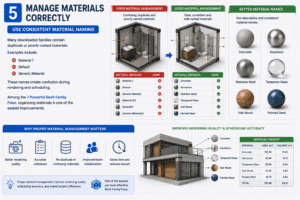
5. Manage Materials Correctly
Use Consistent Material Naming
Many downloaded families contain duplicate or poorly named materials.
Examples include:
- Material 1
- Default
- Generic Material
These names create confusion during rendering and scheduling.
Among the 7 Powerful Revit Family Fixes, organizing materials is one of the easiest improvements.
Better Material Names
Use descriptive names such as:
- Concrete
- Aluminum
- Stainless Steel
- Tempered Glass
- Oak Wood
- Painted Steel
Proper material management improves rendering quality and scheduling accuracy.
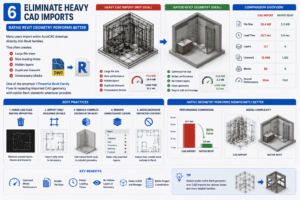
6. Eliminate Heavy CAD Imports
Native Revit Geometry Performs Better
Many users import entire AutoCAD drawings directly into Revit families.
This often creates:
- Large file sizes
- Slow loading times
- Hidden layers
- Duplicate linework
- Unnecessary blocks
One of the smartest 7 Powerful Revit Family Fixes is replacing imported CAD geometry with native Revit elements whenever possible.
Best Practices
- Purge CAD files before importing.
- Import only required details.
- Rebuild complex geometry in Revit.
- Remove unnecessary layers.
- Avoid excessive imported content.
Native geometry performs significantly better.
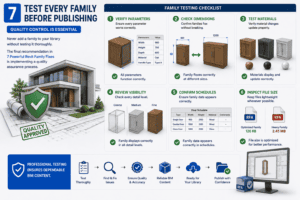
7. Test Every Family Before Publishing
Quality Control Is Essential
Never add a family to your library without testing it thoroughly.
The final recommendation in 7 Powerful Revit Family Fixes is implementing a quality assurance process.
Family Testing Checklist
Verify Parameters
Ensure every parameter works correctly.
Check Dimensions
Confirm families flex without breaking.
Test Materials
Verify material changes update properly.
Review Visibility
Check every detail level.
Confirm Schedules
Ensure family data appears correctly.
Inspect File Size
Keep files lightweight whenever possible.
Professional testing ensures dependable BIM content.
Additional Best Practices
Keep Your Library Organized
An organized library improves productivity and reduces duplication.
Create folders based on:
- Doors
- Windows
- Furniture
- Plumbing Fixtures
- Electrical Equipment
- HVAC Components
- Structural Families
Applying 7 Powerful Revit Family Fixes becomes much easier when your library follows consistent standards.
Follow Consistent Naming Standards
Use descriptive file names such as:
- Door_Single_900x2100
- Window_Fixed_1500x1200
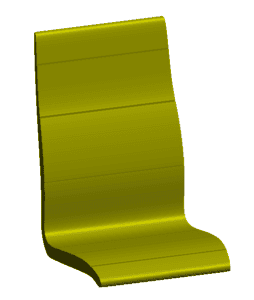
- Chair_Task_Adjustable
Consistent naming makes searching faster and improves collaboration.
Maintain Shared Parameters
Shared Parameters allow consistent scheduling across multiple projects.
Benefits include:
- Better schedules
- Improved tagging
- Easier data management
- Higher BIM consistency
Including Shared Parameters is another important part of 7 Powerful Revit Family Fixes.
Remove Unused Types
Downloaded families often contain dozens of unnecessary family types.
Delete unused types regularly to:
- Reduce file size
- Improve loading speed
- Simplify maintenance
This simple task supports the overall goal of 7 Powerful Revit Family Fixes.
Document Family Information
Every professional family should include useful metadata.
Recommended Information
- Manufacturer
- Product Number
- Model Name
- Website
- Cost
- Description
- Assembly Code
- OmniClass Number
Complete information improves project documentation and facility management.
Common Mistakes to Avoid
Even experienced BIM professionals occasionally make mistakes.
Avoid these common problems:
Overly Detailed Geometry
Unnecessary detail slows projects.
Poor Parameter Planning
Incorrect parameters reduce flexibility.
Duplicate Materials
Duplicate materials complicate rendering.
Heavy CAD Imports
Imported files increase project size.
Missing Shared Parameters
Schedules become inconsistent.
Untested Families
Testing prevents future issues.
Avoiding these mistakes is one of the main goals of 7 Powerful Revit Family Fixes.
Conclusion
Creating high-quality Revit families requires more than simply modeling geometry. Efficient BIM content should be lightweight, flexible, organized, and easy to maintain. By implementing 7 Powerful Revit Family Fixes, you can improve model performance, reduce project file sizes, enhance scheduling accuracy, and create professional BIM libraries that support long-term project success.
Whether you’re a beginner learning family creation or an experienced BIM manager maintaining thousands of components, these best practices will help you build smarter Revit families that perform reliably in every project.
Start applying 7 Powerful Revit Family Fixes today to create cleaner models, faster workflows, and higher-quality BIM content. As your library grows, you’ll appreciate the value of consistent standards, optimized parameters, and efficient family design. Following these proven techniques ensures that your Revit families remain scalable, dependable, and ready for real-world architectural, structural, and MEP projects.
By consistently using 7 Powerful Revit Family Fixes, you’ll spend less time troubleshooting and more time designing, coordinating, and delivering successful BIM projects.
For more information click here.