7 Powerful Revit IFC Export Tricks
Introduction
Building Information Modeling (BIM) has revolutionized the way architects, engineers, and construction professionals collaborate throughout the design and construction process. As Autodesk Revit continues to be a leading BIM platform, the need to exchange project data with consultants and stakeholders using different software has made IFC exports more important than ever. Understanding 7 Powerful Revit IFC Export Tricks can help ensure that your models are transferred accurately while maintaining essential project information.
Although exporting an IFC file may seem like a simple task, achieving a high-quality, standards-compliant result requires careful planning and the right workflow. By applying 7 Powerful Revit IFC Export Tricks, you can avoid common issues such as missing elements, incorrect geometry, and data loss, leading to smoother coordination between project teams.
Whether you’re working on residential, commercial, industrial, or infrastructure projects, mastering 7 Powerful Revit IFC Export Tricks will improve collaboration, enhance interoperability, and reduce costly errors. In this guide, you’ll discover 7 Powerful Revit IFC Export Tricks that can help you create reliable IFC files and deliver better BIM projects from start to finish.

Why IFC Export Matters
IFC is an open BIM format designed to exchange building information between different BIM software applications without losing important project data.
A properly exported IFC file allows project stakeholders to:
- Share BIM models across multiple platforms
- Improve interdisciplinary coordination
- Detect clashes more effectively
- Maintain accurate building information
- Support facility management after construction
Without proper export preparation, valuable model information can be lost during file exchange.
Trick 1: Prepare Your Revit Model Before Export
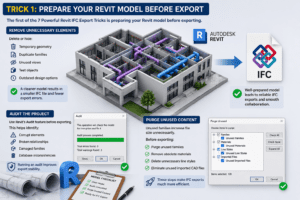
The first of the 7 Powerful Revit IFC Export Tricks is preparing your Revit model before exporting.
Many export problems originate from incomplete or poorly maintained models.
Remove Unnecessary Elements
Delete or hide:
- Temporary geometry
- Duplicate families
- Unused views
- Test objects
- Outdated design options
A cleaner model results in a smaller IFC file and fewer export errors.
Audit the Project
Use Revit’s Audit feature before exporting.
This helps identify:
- Corrupt elements
- Broken relationships
- Damaged families
- Database inconsistencies
Running an audit improves export stability.
Purge Unused Content
Unused families increase file size unnecessarily.
Before exporting:
- Purge unused families
- Remove obsolete materials
- Delete unnecessary line styles
- Eliminate unused imported CAD files
These steps make IFC exports much more efficient.
Trick 2: Use the Correct IFC Version
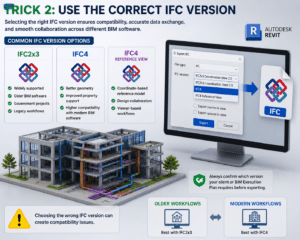
Another important recommendation within 7 Powerful Revit IFC Export Tricks is selecting the proper IFC version.
Different organizations require different IFC standards.
Common options include:
- IFC2x3
- IFC4
- IFC4 Reference View
Always confirm which version your client or BIM Execution Plan requires before exporting.
IFC2x3
Suitable for:
- Older BIM software
- Government projects
- Legacy workflows
IFC4
Offers:
- Better geometry
- Improved property support
- Higher compatibility with modern BIM software
Choosing the wrong version can create compatibility issues.
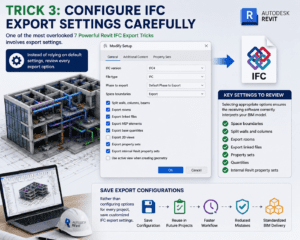
Trick 3: Configure IFC Export Settings Carefully
One of the most overlooked 7 Powerful Revit IFC Export Tricks involves export settings.
Instead of relying on default settings, review every export option.
Key Settings to Review
Check:
- Space boundaries
- Split walls and columns
- Export rooms
- Export linked files
- Property sets
- Quantities
- Internal Revit property sets
Selecting appropriate options ensures the receiving software correctly interprets your BIM model.
Save Export Configurations
Rather than configuring options for every project, save customized IFC export settings.
Benefits include:
- Consistency
- Faster workflow
- Reduced mistakes
- Standardized BIM delivery
Trick 4: Map Revit Categories Correctly
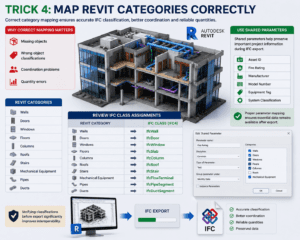
Another valuable lesson among 7 Powerful Revit IFC Export Tricks is category mapping.
Every Revit category should correspond to the appropriate IFC class.
Incorrect mappings often cause:
- Missing objects
- Wrong object classifications
- Coordination problems
- Quantity errors
Review IFC Class Assignments
Examples include:
- Walls → IfcWall
- Doors → IfcDoor
- Windows → IfcWindow
- Floors → IfcSlab
- Columns → IfcColumn
Verifying classifications before export significantly improves interoperability.
Use Shared Parameters
Shared parameters help preserve important project information during IFC export.
Typical shared parameters include:
- Asset ID
- Fire Rating
- Manufacturer
- Model Number
- Equipment Tag
- System Classification
Proper parameter mapping ensures essential data remains available after export.
Trick 5: Export Only the Required Information
Large IFC files are slower to process and more difficult to coordinate.
One of the smartest 7 Powerful Revit IFC Export Tricks is exporting only the information required by the project team.
Create Dedicated Export Views
Instead of exporting the entire project, create a dedicated IFC export view.
This allows you to:
- Hide unnecessary elements
- Control visibility
- Exclude temporary objects
- Improve export performance
Dedicated export views also help maintain consistency across project submissions.

Trick 6: Validate the IFC File After Export
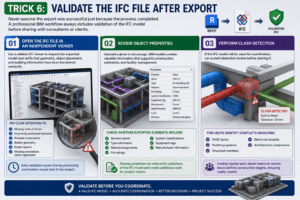
The sixth recommendation in 7 Powerful Revit IFC Export Tricks is to never assume that the export was successful simply because the process completed without errors. A professional BIM workflow always includes validation of the exported IFC model before it is shared with consultants or clients.
Open the IFC File in an Independent Viewer
Use a reliable IFC viewer to inspect the exported model. This allows you to verify that the geometry, object placement, and building information have been transferred correctly. Checking the model outside Revit helps identify issues that may not be visible during the export process.
Pay close attention to:
- Missing walls or floors
- Incorrectly positioned elements
- Rotated components
- Broken geometry
- Empty spaces
- Missing annotations where applicable
Early validation saves time by preventing coordination issues later in the project.
Review Object Properties
Geometry alone is not enough. BIM models contain valuable information that supports construction, estimation, and facility management.
Check whether exported elements include:
- Element names
- Type information
- Material assignments
- Fire ratings
- System classifications
- Equipment tags
- Manufacturer information
Missing properties can reduce the usefulness of the IFC model and create additional work for project teams.
Perform Clash Detection
If the IFC model will be used for coordination, run a clash detection review before sharing it.
This helps identify conflicts involving:
- HVAC ducts
- Plumbing systems
- Structural members
- Electrical conduits
- Architectural components
Finding clashes early allows teams to resolve issues before construction begins, reducing costly rework.
Trick 7: Follow BIM Standards and Naming Conventions
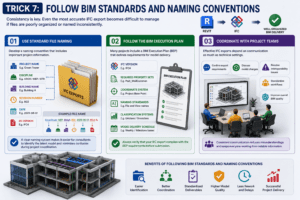
The final recommendation in 7 Powerful Revit IFC Export Tricks focuses on consistency.
Even the most accurate IFC export becomes difficult to manage if files are poorly organized or named inconsistently.
Use Standard File Naming
Develop a naming convention that includes important project information.
For example:
- Project Name
- Discipline
- Building Name
- Revision Number
- Date
- IFC Version
A clear naming system makes it easier for consultants to identify the latest model and minimizes confusion during project coordination.
Follow the BIM Execution Plan
Many projects include a BIM Execution Plan (BEP) that defines:
- IFC version
- Required property sets
- Coordinate system
- Naming standards
- Classification systems
- Model delivery schedule
Always verify that your export complies with these requirements before submission.
Coordinate with Project Teams
Effective IFC exports depend on communication as much as technical settings.
Regular coordination meetings help teams:
- Confirm export requirements
- Discuss model changes
- Resolve interoperability issues
- Standardize workflows
- Improve overall BIM quality
Consistent communication reduces misunderstandings and keeps everyone working from reliable information.
Common IFC Export Mistakes to Avoid
Even experienced Revit users occasionally encounter IFC export problems. Avoiding these common mistakes will improve the quality of every exported model.
Ignoring Model Cleanup
Unused families, duplicate objects, and temporary geometry increase file size and can introduce export errors.
Using Default Export Settings
Default settings are rarely appropriate for every project. Always review and customize export options based on project requirements.
Exporting the Entire Model
Large models often contain unnecessary information. Export only what consultants actually need.
Forgetting to Verify Coordinates
Incorrect project coordinates can cause models to appear in the wrong location when linked into other BIM software.
Skipping Validation
Never deliver an IFC file without reviewing it in an IFC viewer or coordination platform.
Benefits of Better IFC Exports
Applying these techniques provides measurable benefits throughout the project lifecycle.
Improved IFC exports lead to:
- Better collaboration between disciplines
- Faster coordination meetings
- Reduced modeling errors
- Improved clash detection
- More accurate quantities
- Better interoperability
- Higher client satisfaction
- More reliable BIM deliverables
These improvements contribute to smoother project execution and stronger relationships with project stakeholders.
Conclusion
Successful BIM coordination relies on accurate data exchange, and the IFC format continues to be one of the most trusted standards for sharing building information between different BIM software platforms. Although exporting an IFC file may appear straightforward, producing a reliable and high-quality model requires careful planning, the right export settings, and proper validation. Implementing 7 Powerful Revit IFC Export Tricks helps ensure your exported models are accurate, complete, and ready for seamless collaboration.
By following 7 Powerful Revit IFC Export Tricks, BIM professionals can minimize export errors, improve interoperability, and create models that better support design coordination, construction workflows, and facility management. Every stage, from preparing your Revit model and choosing the correct IFC version to verifying the exported file, contributes to a smoother BIM process.
As the BIM industry continues to advance, mastering 7 Powerful Revit IFC Export Tricks gives professionals a competitive advantage by delivering consistent, standards-compliant IFC files. Whether you’re managing a small renovation or a large commercial development, applying 7 Powerful Revit IFC Export Tricks will improve project coordination, strengthen collaboration across disciplines, and produce more efficient, dependable BIM deliverables.
For more information click here.