7 Proven Revit Family Tricks to Cut File Size
Introduction
If your Revit project takes forever to open, crashes unexpectedly, or becomes painfully slow while modeling, you’re not alone. One of the biggest reasons behind poor Revit performance is oversized and poorly optimized families. Every unnecessary line, imported CAD file, high-resolution image, or excessive parameter adds weight to your project, making it slower and harder to manage.
The good news is that you don’t need expensive hardware to improve performance. By learning a few smart optimization techniques, you can dramatically reduce your Revit file size, improve loading times, and make collaboration much smoother.
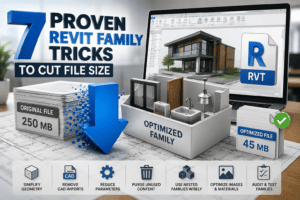
In this guide, you’ll discover 7 Proven Revit Family Tricks to Cut File Size that professional BIM managers and experienced Revit users rely on every day. Whether you’re working on residential homes, commercial buildings, hospitals, retail stores, or large MEP projects, these practical techniques will help you create cleaner, faster, and more efficient Revit models.
If you’ve been searching for 7 Proven Revit Family Tricks to Cut File Size, you’re in the right place. These methods are easy to apply and can make a noticeable difference in almost any project.
Why Revit File Size Matters
Large Revit files don’t just occupy more storage—they also slow down your entire workflow. When a model becomes bloated, every action takes longer. Opening files, synchronizing with central models, generating views, printing sheets, and exporting data all become more time-consuming.
A lightweight project provides several advantages:
- Faster project opening
- Better Sync with Central performance
- Reduced RAM usage
- Improved collaboration among team members
- Lower risk of model corruption
- Faster backups and cloud uploads
- Better overall productivity
This is exactly why many BIM managers focus on 7 Proven Revit Family Tricks to Cut File Size before a project grows too large.
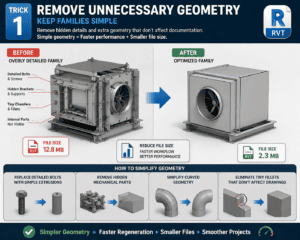
Trick 1 – Remove Unnecessary Geometry
Keep Families Simple
Many downloadable families contain far more geometry than they actually need. Decorative screws, hidden brackets, tiny chamfers, and detailed internal components usually aren’t visible in project documentation but still increase file size.
Instead of modeling every tiny detail, create geometry that represents only what users actually see.
For example:
- Replace detailed bolts with simple extrusions.
- Remove hidden mechanical parts.
- Simplify curved geometry where possible.
- Eliminate tiny fillets that don’t affect drawings.
Simple geometry means faster regeneration and smaller project files.
One of the easiest ways to apply 7 Proven Revit Family Tricks to Cut File Size is by simplifying unnecessary geometry.
Trick 2 – Avoid Imported CAD Files
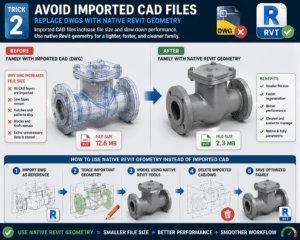
Replace DWGs with Native Revit Geometry
Many manufacturers distribute Revit families containing embedded DWG files.
Although convenient, imported CAD files significantly increase family size because every CAD layer, line type, hatch pattern, and block remains inside the family.
Instead:
- Remodel important geometry directly in Revit.
- Use reference planes whenever possible.
- Convert essential details into native Revit elements.
- Delete imported CAD after tracing.
Native Revit geometry is much lighter and performs far better than imported CAD content.
Professionals following 7 Proven Revit Family Tricks to Cut File Size rarely keep unnecessary DWG files inside production families.
Trick 3 – Reduce Parameters
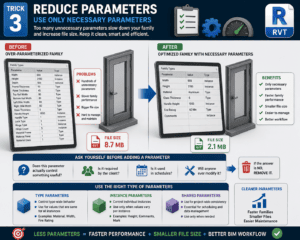
Use Only Necessary Parameters
Parameters are incredibly useful, but having hundreds of unnecessary parameters can slow down family performance.
Ask yourself:
- Does this parameter actually control something useful?
- Is it required by the client?
- Is it used in schedules?
- Will anyone ever modify it?
If the answer is no, remove it.
Instead of creating multiple custom parameters, consider using:
- Type Parameters
- Instance Parameters only when necessary
- Shared Parameters only for scheduling
Cleaner parameters mean faster families and easier maintenance.
Applying this recommendation is another excellent example of 7 Proven Revit Family Tricks to Cut File Size.
Trick 4 – Purge Unused Content
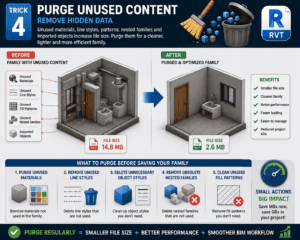
Remove Hidden Data
Families often contain unused materials, line styles, fill patterns, nested families, and imported objects left over from previous edits.
Before saving a family:
- Purge unused materials.
- Remove unused line styles.
- Delete unnecessary object styles.
- Remove obsolete nested families.
- Clean unused fill patterns.
These small improvements can save several megabytes across an entire project.
Many experienced BIM coordinators include purging as a standard step in 7 Proven Revit Family Tricks to Cut File Size because it provides immediate results.
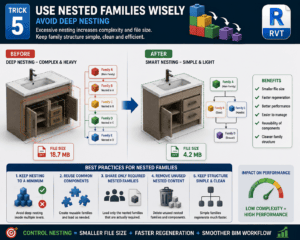
Trick 5 – Use Nested Families Wisely
Avoid Deep Nesting
Nested families are useful, but excessive nesting increases complexity.
Instead of creating families inside families inside families:
- Keep nesting to a minimum.
- Reuse common components.
- Share only required nested families.
- Remove unused nested content.
Simple family structures regenerate much faster.
When implementing 7 Proven Revit Family Tricks to Cut File Size, controlling nested families is often overlooked but delivers significant performance improvements.
Trick 6 – Optimize Images and Materials
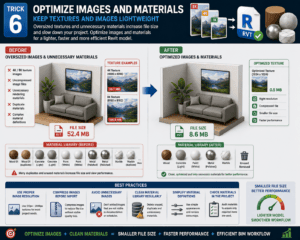
Keep Textures and Images Lightweight
One of the most overlooked reasons behind large Revit family sizes is the use of oversized texture images and unnecessary rendering materials. While high-resolution textures may look impressive during rendering, they often have little impact on construction documentation and can significantly slow down your project.
Instead of using multiple 4K or 8K texture files, choose optimized images with appropriate resolutions. Compress image files before importing them into Revit, and avoid embedding images that serve no practical purpose.
You should also review your material library regularly. Delete duplicate materials, remove unused appearances, and simplify material definitions wherever possible.
Following this step is another smart way to apply 7 Proven Revit Family Tricks to Cut File Size while keeping your model visually clean and efficient.
Trick 7 – Audit and Test Every Family
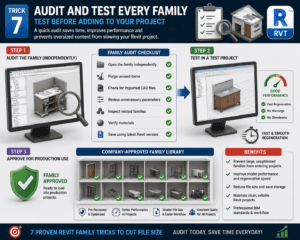
Test Before Adding to Your Project
Before loading any family into a production project, take a few minutes to inspect it.
A simple checklist includes:
- Open the family independently.
- Purge unused items.
- Check for imported CAD files.
- Review unnecessary parameters.
- Inspect nested families.
- Verify materials.
- Save the family using the latest Revit version.
After loading it into a test project, observe how quickly it regenerates and whether it affects model performance.
Professional BIM teams often maintain a company-approved family library where every family has already been reviewed and optimized. This prevents oversized content from entering active projects.
This final recommendation completes the 7 Proven Revit Family Tricks to Cut File Size that every Revit user should know.
Bonus Tips to Make Revit Projects Even Faster
Optimizing families is only part of the solution. You can improve project performance even more by following these additional practices:
Use Company-Standard Families
Avoid downloading random families from different websites. Manufacturer families are often highly detailed and include unnecessary data.
Create or maintain a standard company library containing only optimized families.
Purge Your Project Regularly
Over time, projects collect unused families, materials, line patterns, and view templates.
Running Purge Unused regularly helps keep the project clean and efficient.
Audit Large Projects
Before starting a new phase or issuing deliverables, audit the project to identify and fix minor issues that may impact performance.
Limit Imported Content
Every imported object increases project complexity.
Whenever possible:
- Model directly in Revit.
- Link CAD files instead of importing them.
- Remove temporary references after use.
These habits complement the 7 Proven Revit Family Tricks to Cut File Size and help maintain a healthy BIM environment throughout the project lifecycle.
Common Mistakes That Increase Revit File Size
Many users unknowingly create oversized projects by making small but costly mistakes.
Here are some of the most common ones:
- Downloading manufacturer families without reviewing them.
- Keeping imported DWG files inside families.
- Creating unnecessary custom parameters.
- Using excessive detail levels.
- Leaving unused materials in families.
- Adding multiple nested families unnecessarily.
- Embedding high-resolution images.
- Ignoring family cleanup before loading into projects.
- Never purging unused content.
- Using duplicate families with different names.
Avoiding these mistakes makes the 7 Proven Revit Family Tricks to Cut File Size even more effective.
Frequently Asked Questions
Why are Revit families so large?
Many families include unnecessary geometry, CAD imports, duplicate materials, excessive parameters, and nested components, all of which increase file size.
Does deleting unused families reduce project size?
Yes. Purging unused families, materials, line styles, and patterns can noticeably reduce project size and improve performance.
Should I use manufacturer families?
Manufacturer families can save time, but always review and optimize them before adding them to production projects.
How often should I clean my Revit library?
Ideally, review and optimize your family library every few months or before starting a major project.
Conclusion
Optimizing your Revit families is one of the smartest ways to improve project performance and reduce unnecessary file bloat. By applying the 7 Proven Revit Family Tricks to Cut File Size, you can create cleaner models, speed up project loading, enhance team collaboration, and reduce the risk of crashes or file corruption.
Whether you’re an architect, BIM manager, structural engineer, or MEP professional, these 7 Proven Revit Family Tricks to Cut File Size will help you build lightweight, efficient families that perform better in projects of any size. Small improvements made today can save hours of work over the life of a project.
Make it a habit to review, simplify, and optimize every family before adding it to your Revit library. Following the 7 Proven Revit Family Tricks to Cut File Size consistently will not only improve your workflow but also create a more reliable and professional BIM environment for your entire team.
If you’re serious about maximizing Revit performance, now is the perfect time to start implementing the 7 Proven Revit Family Tricks to Cut File Size in every project. Your models will be faster, your files will be smaller, and your productivity will continue to grow with every optimized family you create.
For more information click here.