5 Powerful Revit Family Optimization Tips
If you work with Autodesk Revit on a regular basis, you already know that families are at the heart of almost every BIM project. Doors, windows, furniture, plumbing fixtures, equipment, structural components, and countless other objects are created and managed as Revit families. When these families are well-built, your project can run smoothly. When they are poorly designed, even a powerful computer can struggle.
This is why understanding the 5 Powerful Revit Family Optimization Tips can make a noticeable difference in your daily workflow. Optimized families load faster, respond better, keep project files lighter, and make models easier for other team members to manage.
Many designers focus heavily on how a family looks without thinking about what is happening behind the geometry. A highly detailed family may look impressive in a 3D view, but if it contains unnecessary geometry, complicated formulas, excessive parameters, or imported CAD data, it can quickly become a problem.
In this guide, we will explore the 5 Powerful Revit Family Optimization Tips that can help you create cleaner, faster, and more reliable Revit families.

Why Revit Family Optimization Matters
Before discussing the 5 Powerful Revit Family Optimization Tips, it is important to understand why family performance matters in the first place.
A Revit project can contain thousands or even hundreds of thousands of family instances. A single heavy family may not cause an obvious problem. However, when that family is placed hundreds of times, its impact can become significant.
For example, imagine an equipment family containing highly detailed 3D components, multiple nested families, imported CAD files, complicated formulas, and dozens of visibility controls. Placing it once may be fine. Placing it 500 times is a completely different story.
Poorly optimized families can contribute to:
- Slow model performance
- Longer file opening times
- Slow synchronization
- Delayed view updates
- Larger project file sizes
- Difficult family management
- Reduced productivity
The 5 Powerful Revit Family Optimization Tips below focus on reducing these problems without sacrificing the information that BIM professionals actually need.
Tip 1: Keep Family Geometry as Simple as Possible
The first of the 5 Powerful Revit Family Optimization Tips is simple: use only the geometry you actually need.
One of the most common mistakes when creating Revit families is adding too much detail. Designers sometimes model every screw, bolt, groove, edge, and internal component even when those details will never be visible at the project’s required scale.
Revit has to calculate and display all that geometry. The more complex the family becomes, the more work Revit has to perform.
Use Geometry That Serves a Purpose
Before adding a piece of geometry, ask yourself:
Does this detail provide useful information or improve the required representation?
If the answer is no, leave it out.
For example, a simple chair family does not normally need every stitching detail modeled in 3D. A mechanical equipment family may not need every internal component if the equipment will only be represented schematically.
Use simple extrusions, blends, revolves, and sweeps where appropriate. Avoid creating complicated forms when a simpler shape can communicate the same design intent.
Model at the Required Level of Detail
Another important part of the 5 Powerful Revit Family Optimization Tips is controlling the level of detail.
Revit allows families to behave differently at Coarse, Medium, and Fine detail levels. Take advantage of this functionality.
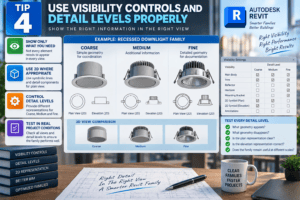
At Coarse detail, show only the information necessary for general coordination. At Medium, provide additional information. At Fine, display the detailed geometry required for documentation or visualization.
This approach allows one family to serve multiple purposes without forcing Revit to display maximum geometry in every view.

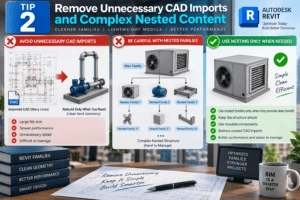
Tip 2: Remove Unnecessary CAD Imports and Complex Nested Content
The second of the 5 Powerful Revit Family Optimization Tips is to be careful with imported and nested content.
CAD files can be useful during family creation, but imported DWG or DXF files can add unnecessary complexity. A CAD drawing may contain hundreds or thousands of lines that Revit must process.
Avoid Using CAD as Permanent Geometry
If you use a CAD file as a reference while creating a family, consider tracing or rebuilding only the information you need.
Once the required Revit geometry has been created, remove the CAD import if it is no longer necessary.
This is especially important for families that will be used repeatedly across large projects.
Be Careful With Nested Families
Nested families can be extremely useful. They allow you to create modular and flexible components. However, nesting everything is not automatically a good solution.
If one family contains several nested families, and those nested families contain additional nested families, the structure can quickly become complicated.
Use nested families when they provide a clear benefit, such as reusable components, shared geometry, or controlled visibility. Otherwise, simple native geometry may be a better choice.
The goal of this 5 Powerful Revit Family Optimization Tips is not to eliminate useful functionality. It is to eliminate unnecessary complexity.
Tip 3: Control Parameters and Formulas
The third of the 5 Powerful Revit Family Optimization Tips focuses on parameters.
Parameters are one of the reasons Revit families are so powerful. They allow a single family to represent multiple sizes, configurations, and design options.
However, adding parameters simply because you can is a mistake.
Use Only Necessary Parameters
Every parameter should have a purpose.
Instead of creating separate parameters for every small dimension, determine which values genuinely need to be controlled by the user.
For example, a basic furniture family may only need:
- Width
- Depth
- Height
- Material
- Visibility options
Adding dozens of parameters for minor features can make the family harder to understand and maintain.
Keep Formulas Simple
Formulas can make families highly flexible, but complicated formulas can increase family complexity and make troubleshooting difficult.
Whenever possible, use straightforward relationships between dimensions.
Also test parameter combinations carefully. A family that works perfectly at one size may fail when a user enters a different value.
The best families are not necessarily the ones with the most parameters. They are the ones that provide the right amount of control without unnecessary complexity.

Tip 4: Use Visibility Controls and Detail Levels Properly
The fourth of the 5 Powerful Revit Family Optimization Tips is to make smart use of visibility settings.
Not every element needs to appear in every view.
For example, a detailed manufacturer component might require several pieces of geometry for a Fine-detail view but only a simple symbolic representation for Coarse detail.
Separate 2D and 3D Information
A good Revit family often combines 3D geometry with symbolic lines, detail components, and reference planes.
Instead of forcing complex 3D geometry to communicate everything, use 2D representation where appropriate.
For example, an electrical fixture may need only simple symbolic graphics in plan view. There is no reason to display unnecessary 3D detail when the view does not require it.
Test Every Detail Level
After creating a family, switch between Coarse, Medium, and Fine detail levels.
Check:
- What geometry appears?
- What geometry disappears?
- Is the plan representation clear?
- Is the elevation representation correct?
- Does the family remain useful at different scales?
This testing process is an important part of the 5 Powerful Revit Family Optimization Tips because a family should perform correctly in real project conditions, not just inside the Family Editor.
Tip 5: Test, Clean, and Audit Your Families
The final and perhaps most practical point in the 5 Powerful Revit Family Optimization Tips is to test your family before distributing it.
A family may look perfect while you are creating it but behave differently once loaded into a real project.
Test the Family at Different Sizes
Change its dimensions and parameters. Try different configurations.
Look for:
- Geometry failures
- Unexpected intersections
- Incorrect constraints
- Broken formulas
- Visibility problems
- Incorrect material assignments
Testing different combinations can reveal problems that are not obvious during initial development.
Check the Family in a Real Project
Load the family into a test project and place several instances.
Rotate them, mirror them, change their parameters, and test different view types.
If the family performs well with one instance but becomes slow when hundreds of instances are placed, the family may need additional optimization.
Keep the Family File Clean
Before saving the final family, review unnecessary reference planes, imported files, unused parameters, excessive geometry, and other content that does not contribute to the final result.
A clean family is easier for another BIM professional to understand and modify.

How These 5 Powerful Revit Family Optimization Tips Improve Your BIM Workflow
The real advantage of the 5 Powerful Revit Family Optimization Tips becomes clear when you consider the entire BIM workflow.
An optimized family is not simply a smaller file. It is a better digital component.
It loads efficiently, behaves predictably, communicates design information clearly, and can be reused across multiple projects.
For BIM coordinators and Revit managers, optimized families can also make content libraries easier to maintain. Instead of having multiple versions of unnecessarily complicated families, teams can build standardized content that performs consistently.
For designers, this means less waiting and fewer technical problems.
For project managers, it can mean fewer productivity issues caused by slow models.
For clients, it can mean a cleaner and more reliable BIM deliverable.
Common Revit Family Optimization Mistakes to Avoid
Even after learning the 5 Powerful Revit Family Optimization Tips, it is easy to fall into common mistakes.
One mistake is believing that more detail automatically means a better family. In reality, detail should be based on project requirements.
Another mistake is importing manufacturer CAD files directly without cleaning them. Manufacturer content can be useful, but it should be reviewed before becoming part of a production model.
Using too many nested families is another common issue. Nested content should have a clear purpose.
Finally, many users create a family once and never test it again. Families should be tested in realistic conditions before they become part of a company’s standard library.
A Practical Checklist for Better Revit Families
When applying the 5 Powerful Revit Family Optimization Tips, use this quick checklist:
Before Finalizing a Family
- Remove unnecessary geometry.
- Avoid permanent CAD imports when possible.
- Reduce unnecessary nested families.
- Keep parameters meaningful.
- Simplify formulas.
- Use Coarse, Medium, and Fine detail levels.
- Use symbolic representation where appropriate.
- Test different dimensions.
- Test visibility settings.
- Load the family into a sample project.
- Place multiple instances.
- Remove unused content.
Following this checklist can turn an ordinary family into a reliable BIM component.
Final Thoughts
Creating high-quality Revit families is all about finding the right balance between detail, flexibility, performance, and usability. The 5 Powerful Revit Family Optimization Tips explained in this guide provide a practical approach to building families that are not only visually accurate but also efficient and reliable in real BIM projects.
The 5 Powerful Revit Family Optimization Tips are not complicated techniques that require advanced programming or special tools. They are simple practices that can make a major difference when applied consistently. From reducing unnecessary geometry to managing parameters and visibility settings, each step helps create a cleaner and more efficient family.
One of the most important lessons from the 5 Powerful Revit Family Optimization Tips is that a Revit family should not be created simply to look impressive. It should perform well when it is loaded into a project, duplicated hundreds of times, viewed at different detail levels, and shared with other members of a BIM team.
By following the 5 Powerful Revit Family Optimization Tips, designers can create content that is easier to understand, easier to modify, and less likely to slow down a project. This becomes especially valuable when working on large architectural, structural, or MEP models where even small performance improvements can have a noticeable impact.
The 5 Powerful Revit Family Optimization Tips are also useful for BIM managers who are responsible for maintaining company libraries. A well-organized library should contain families that are standardized, lightweight, flexible, and ready for repeated use. Removing unnecessary complexity at the family level can prevent many performance issues later in the project.
Whether you are creating architectural components, MEP equipment, structural elements, furniture, or manufacturer-specific content, the 5 Powerful Revit Family Optimization Tips should become part of your normal family creation process. Optimization is much easier when it is considered from the beginning rather than treated as a solution after a model becomes slow.
The real value of the 5 Powerful Revit Family Optimization Tips comes from applying them consistently. Start by reviewing one existing family in your library. Look for unnecessary geometry, excessive parameters, complicated nested components, and visibility settings that could be improved. Small changes can often produce surprisingly useful results.
Ultimately, the 5 Powerful Revit Family Optimization Tips are about creating better BIM content—not simply smaller files. When families are thoughtfully designed and properly tested, they contribute to a smoother Revit workflow, better project coordination, and a more productive design environment.
For more information click here.