
Common Beginner Mistakes in Revit
Common Beginner Mistakes in Revit often occur because Autodesk Revit, while a powerful Building Information Modeling (BIM) tool, can feel overwhelming to new users. Many beginners jump straight into modeling without understanding how the software actually works. As a result, these habits lead to slow models, incorrect drawings, coordination issues, and sometimes even complete project failure.
This blog covers the most common beginner mistakes in Revit, explains why they happen, and shows how to avoid them. Whether you are a student, a junior modeler, or a professional transitioning from AutoCAD, this guide will help you build strong Revit foundations.
Understanding Revit Before Modeling
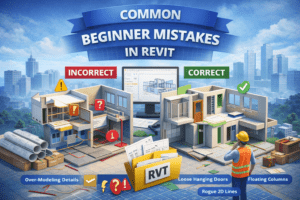
Thinking of Revit Like AutoCAD
One of the biggest beginner mistakes is treating Revit as if it were AutoCAD. AutoCAD is a drafting tool, while Revit is a database-driven BIM platform.
Why This Is a Problem
In AutoCAD, lines are just lines. In Revit, every element has data, parameters, and relationships. When beginners draw lines instead of placing walls, floors, or families, they break the BIM workflow.
Correct Approach
Always model using Revit elements, not drafting tools. Walls should be walls, doors should be doors, and annotations should stay in annotation views.
Poor Project Setup
Skipping Project Templates
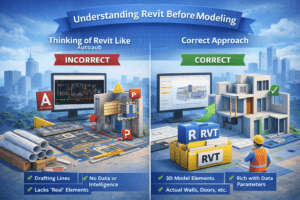
Many beginners start a project using the default Revit template without checking its settings.
What Goes Wrong
-
Incorrect units
-
Missing view templates
-
Wrong object styles
-
Poor line weights
These issues become very difficult to fix once the project grows.
Best Practice
Before starting:
-
Verify units
-
Load required families
-
Set up view templates
-
Adjust object styles
A clean template saves hours later.
Ignoring Levels and Grids
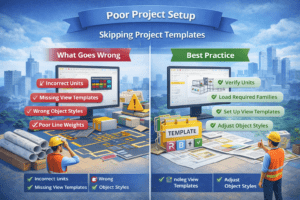
Levels and grids are the backbone of a Revit project, yet beginners often place them randomly or avoid them entirely.
Why Levels Matter
Levels control:
-
Wall heights
-
Floor placement
-
Roof constraints
-
Section views
Incorrect levels result in misaligned elements and wrong elevations.
Proper Use of Levels and Grids
Create all required levels and grids before modeling. Keep naming consistent and avoid deleting levels once elements are attached.
Modeling Mistakes
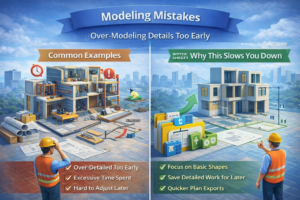
Over-Modeling Details Too Early
Beginners often add too much detail at the start of a project.
Common Examples
-
Modeling screws and bolts
-
Adding complex profiles in early stages
-
Fully detailed furniture in schematic design
Why This Slows You Down
Revit models become heavy and slow, especially when unnecessary geometry is added early.
Better Workflow
Follow Level of Development (LOD) principles. Start simple and increase detail only when required.
Using In-Place Families Excessively
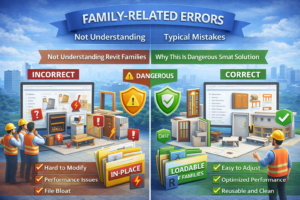
In-place families feel easy, so beginners overuse them.
Problems with In-Place Families
-
Difficult to edit
-
Poor performance
-
Cannot be reused
-
Hard to schedule
When In-Place Families Are Acceptable
Use them only for unique elements that will never repeat. For everything else, create proper loadable families.

Family-Related Errors
Not Understanding Revit Families
Families are the heart of Revit, yet many beginners avoid learning them properly.
Typical Mistakes
-
Using random downloaded families
-
Ignoring parameters
-
Not checking constraints
-
Mixing metric and imperial families
Why This Is Dangerous
Poor families cause:
-
Incorrect schedules
-
Broken dimensions
-
File crashes
-
Coordination problems
Smart Solution
Learn basic family creation and always test families in a separate file before loading them into a project.
Incorrect Use of Parameters
Parameters control data, visibility, and behavior. Beginners often misuse or ignore them.
Common Parameter Mistakes
-
Using text instead of yes/no parameters
-
Hard-coding dimensions
-
Creating too many unnecessary parameters
Best Practice
Use shared parameters where scheduling is required and keep parameter names consistent across the project.

View Management Issues
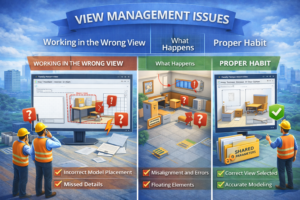
Working in the Wrong View
Many beginners model in random views without realizing the impact.
What Happens
-
Elements appear on wrong levels
-
Incorrect constraints
-
Visibility problems
Proper Habit
Always check:
-
Active view type
-
View scale
-
Level association
Model in appropriate views like floor plans, sections, or elevations.
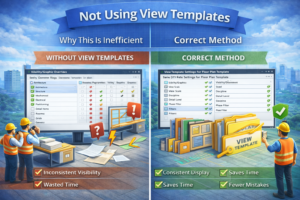
Not Using View Templates
Beginners manually adjust visibility settings in every view.
Why This Is Inefficient
Manual changes lead to inconsistency and wasted time.
Correct Method
Use View Templates to control:
-
Visibility
-
Filters
-
Graphics
-
Annotations
This ensures consistency across drawings.
Annotation and Documentation Mistakes
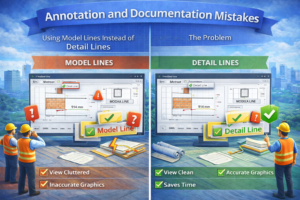
Using Model Lines Instead of Detail Lines
This is a very common beginner error.
The Problem
Model lines appear in every view, cluttering drawings and causing confusion.
Correct Usage
-
Use Detail Lines for drafting
-
Use Model Lines only when geometry must appear in all views
Over-Annotating the Model
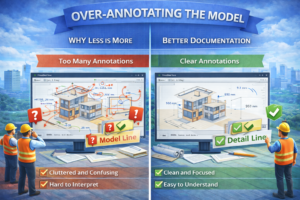
Beginners often add too many dimensions, tags, and notes.
Why Less Is More
Over-annotation reduces drawing clarity and professionalism.
Better Documentation
Focus on:
-
Critical dimensions
-
Clear tags
-
Readable notes
A clean drawing communicates better than a crowded one.
Performance and File Management Errors
Not Purging Unused Elements
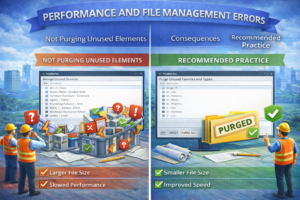
Revit files grow large when unused families and materials remain.
Consequences
-
Slow performance
-
Long opening times
-
Increased crash risk
Recommended Practice
Purge unused elements regularly and remove unnecessary imports.
Linking CAD Files Incorrectly
Many beginners import CAD files instead of linking them.
Why This Is a Mistake
Imported CAD files increase file size and are hard to manage.
Correct Method
Always link CAD files, position them correctly, and remove them when no longer needed.
Coordination and Collaboration Problems
Working Without Worksets
In team environments, beginners often ignore worksets.
What Goes Wrong
-
File conflicts
-
Overwritten work
-
Loss of data
Proper Workflow
Use worksets for:
-
Architectural elements
-
Structural elements
-
MEP systems
This improves collaboration and model control.

Ignoring Coordination Checks
Beginners rarely run clash checks or coordination reviews.
Result
Issues are discovered too late, causing redesign and delays.
Better Approach
Regularly review:
-
Section views
-
3D views
-
Coordination with linked models
Early detection saves time and money.

Bad Habits That Affect Professional Growth
Relying Only on Shortcuts
Shortcuts are helpful, but beginners sometimes use them without understanding commands.
Risk
When something goes wrong, they don’t know how to fix it.
Balanced Learning
Learn both:
-
Shortcuts
-
Tool logic
Understanding builds confidence.

Not Following Naming Conventions
Random naming creates confusion in large projects.
Common Issues
-
Unclear view names
-
Messy family names
-
Inconsistent sheet numbering
Professional Standard
Follow consistent naming conventions for views, families, and sheets.

How to Avoid These Mistakes Long-Term
Build Strong Fundamentals
Spend time learning:
-
Revit interface
-
Families
-
Parameters
-
View control
Strong basics prevent advanced problems.
Practice with Real-World Scenarios
Instead of random practice files:
-
Model real projects
-
Follow construction logic
-
Think like a designer, not just a modeler
Learn From Mistakes, Not Fear Them
Every Revit professional made these mistakes at some point. The key is identifying them early and improving continuously.
Final Thoughts
Revit is not difficult, but it demands discipline and understanding. Most beginner mistakes come from rushing, skipping fundamentals, or treating Revit like a drafting tool instead of a BIM platform.
By avoiding the mistakes discussed in this blog, you will:
-
Create cleaner models
-
Work faster
-
Reduce errors
-
Grow professionally
Mastering Revit is a journey, and the right habits from day one make all the difference.