
How to Load & Use Revit Families (Complete Beginner to Pro Guide)
Autodesk Revit works very differently from traditional CAD software. Instead of drawing lines and shapes, Revit uses intelligent building components known as families. If you want to model efficiently, avoid errors, and create professional BIM projects, you must clearly understand how to load and use Revit families correctly.
This guide explains everything step by step—from what Revit families are, to loading them properly, placing them in projects, and using them like a professional BIM modeler.
What Are Revit Families?
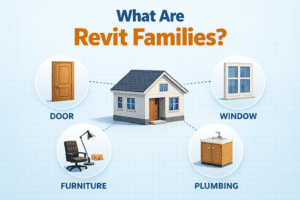
In Revit, everything you place in a project is a family—doors, windows, furniture, lighting, plumbing fixtures, annotation symbols, and even title blocks.
A Revit family is not just a 3D object. It contains:
-
Geometry
-
Parameters
-
Behavior
-
Data
That is why Revit models are smart and information-rich.
Types of Revit Families (Quick Overview)
Before loading families, it’s important to understand their types.
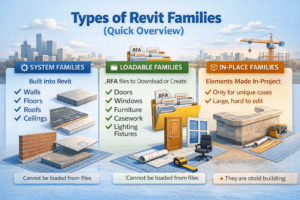
System Families
These are built into Revit and cannot be loaded from files.
Examples include:
-
Walls
-
Floors
-
Roofs
-
Ceilings
You can duplicate and edit their types, but you cannot create them from scratch as files.
Loadable Families
These are the families you usually download or create.
Examples:
-
Doors
-
Windows
-
Furniture
-
Casework
-
Lighting fixtures
They are stored as .RFA files and must be loaded into a project.
In-Place Families
These are custom elements created directly inside a project for unique situations.
They should be used only when necessary, as they increase file size and reduce flexibility.
Why Revit Families Are So Important
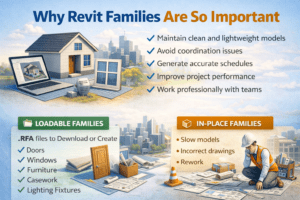
Using families correctly helps you:
-
Maintain clean and lightweight models
-
Avoid coordination issues
-
Generate accurate schedules
-
Improve project performance
-
Work professionally with teams
Poor family usage, on the other hand, leads to slow models, incorrect drawings, and rework.
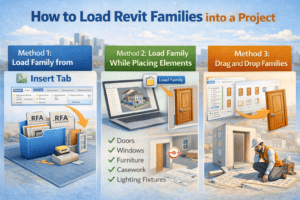
How to Load Revit Families into a Project
There are several correct ways to load Revit families. Choosing the right method saves time and prevents errors.
Method 1: Load Family from Insert Tab
This is the most common method.
Steps:
-
Open your Revit project
-
Go to Insert → Load Family
-
Browse to the family (.RFA) file
-
Select the family and click Open
Once loaded, the family becomes available in the appropriate tool (Door, Window, Component, etc.).
Best Use Case
Use this method when:
-
Loading multiple families at once
-
Organizing families from a library
Method 2: Load Family While Placing Elements
Revit also allows you to load families while working.
Example:
-
Click Architecture → Door
-
If no doors are available, click Load Family
-
Select the required door family
This method is quick and efficient during active modeling.
Method 3: Drag and Drop Families
You can drag an RFA file directly into Revit from Windows Explorer.
Important Note
This method works well for:
-
Furniture
-
Generic models
But it may not auto-activate placement for hosted elements like doors or windows.
How to Use Revit Families Correctly
Loading a family is only half the job. Using it properly is what makes your model professional.
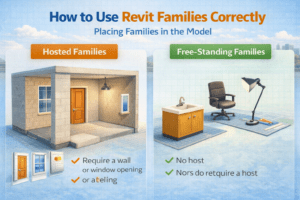
Placing Families in the Model
Hosted Families
Some families require a host:
-
Doors → need walls
-
Windows → need walls
-
Lighting fixtures → need ceilings
Make sure the correct host exists before placement.
Free-Standing Families
Furniture and equipment can be placed freely without hosts.
Understanding Family Types
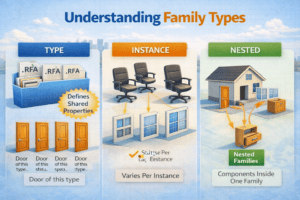
Each family can contain multiple types (sizes or variations).
Example:
A single door family may include:
-
900 x 2100 mm
-
1000 x 2100 mm
-
Double leaf options
Always check the Type Selector in Properties before placing.
Modifying Family Parameters
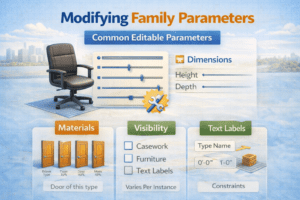
Most Revit families are parametric, meaning their properties can be adjusted.
Common Editable Parameters
-
Width
-
Height
-
Material
-
Visibility
-
Manufacturer data
Changing parameters updates the model and schedules automatically.
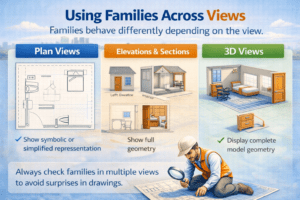
Using Families Across Views
Families behave differently depending on the view.
Plan Views
-
Show symbolic or simplified representation
Elevations & Sections
-
Show full geometry
3D Views
-
Display complete model geometry
Always check families in multiple views to avoid surprises in drawings.
Managing Revit Families Efficiently
Poor family management is one of the biggest causes of slow Revit files.
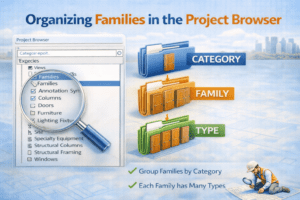
Organizing Families in the Project Browser
Use:
-
Clear naming conventions
-
Consistent type names
-
Proper categories
Avoid loading multiple families that do the same job.
Purging Unused Families
Unused families increase file size.
Steps:
-
Go to Manage → Purge Unused
-
Review items carefully
-
Purge unnecessary families
Do this regularly, especially before submitting files.
Avoid Over-Detailed Families
High-detail families:
-
Slow down performance
-
Increase file size
-
Cause lag in large projects
Best Practice
-
Use low-detail families for design stages
-
Use detailed families only where required
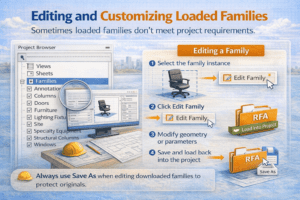
Editing and Customizing Loaded Families
Sometimes loaded families don’t meet project requirements.
Editing a Family
Steps:
-
Select the family instance
-
Click Edit Family
-
Modify geometry or parameters
-
Save and load back into the project
Always use Save As when editing downloaded families to protect originals.
When to Create Custom Families
Create custom families when:
-
Required size is unavailable
-
Project standards demand consistency
-
Manufacturer data is missing
Custom families improve quality and professionalism.
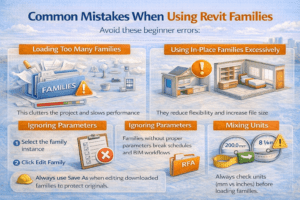
Common Mistakes When Using Revit Families
Avoid these beginner errors:
Loading Too Many Families
This clutters the project and slows performance.
Using In-Place Families Excessively
They reduce flexibility and increase file size.
Ignoring Parameters
Families without proper parameters break schedules and BIM workflows.
Mixing Units
Always check units (mm vs inches) before loading families.
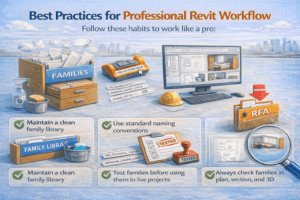
Best Practices for Professional Revit Workflow
Follow these habits to work like a pro:
-
Maintain a clean family library
-
Use standard naming conventions
-
Test families before using them in live projects
-
Avoid downloading poor-quality families
-
Always check families in plan, section, and 3D
Final Thoughts
Understanding how to load and use Revit families correctly is a foundational skill for anyone working in BIM. Families are the backbone of Revit, and mastering them improves speed, accuracy, and project quality.
Whether you are a beginner learning Revit or a professional aiming to improve workflow, investing time in proper family usage will save you countless hours in the future.
If you treat families with care, Revit will reward you with cleaner models, better drawings, and smoother coordination.