
Worksets & Collaboration in Revit
Worksets & Collaboration in Revit have transformed the way architects, engineers, and designers work together on modern construction projects. Today’s BIM projects are complex and require multiple professionals to collaborate on a single model at the same time. With the help of Worksets & Collaboration in Revit, teams can efficiently manage shared models, coordinate their work, and avoid overwriting each other’s changes while working in a collaborative BIM environment.
One of the most important features that enables team collaboration in Revit is Worksets. Worksets allow multiple users to work on the same project model at the same time while maintaining control over different parts of the model.
In this guide, we will explore how Worksets function, how they improve collaboration, and how teams can use them effectively in real-world projects.
Understanding Collaboration in Revit
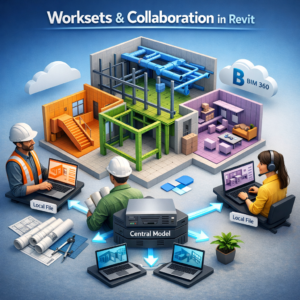
In traditional CAD workflows, multiple people working on the same file could easily cause version conflicts, overwritten files, and coordination issues. Revit solves this problem through worksharing, a system that allows several users to work on a central model.
When worksharing is enabled, the model is divided into manageable sections so that different users can edit specific parts without interfering with others.
What is Worksharing?
Worksharing is the system that allows multiple users to access and modify a Revit model simultaneously.
Instead of everyone editing a single file directly, Revit uses two main components:
-
Central Model
-
Local Copies
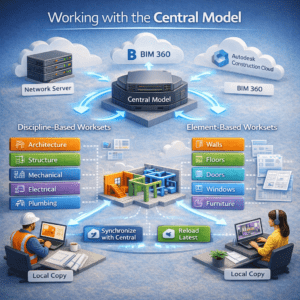
The central model is stored on a shared network location or cloud platform. Each team member creates a local copy of the central model on their computer. Users make changes in their local file and then synchronize their work back to the central model.
This workflow prevents conflicts and keeps everyone working with the latest project data.
What are Worksets in Revit?
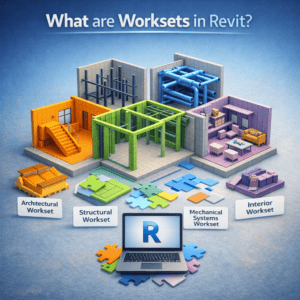
Worksets are essentially collections of elements within a Revit project. They divide the model into different sections that users can control and edit independently.
For example, a building model can be divided into different worksets such as:
-
Architectural elements
-
Structural components
-
Mechanical systems
-
Furniture
-
Levels and grids
Each workset can be assigned to a specific team member or discipline, which helps organize the model and prevent editing conflicts.
Benefits of Using Worksets
Worksets provide several advantages in collaborative projects:
-
Multiple users can work in the same project simultaneously
-
Editing permissions are clearly defined
-
Model performance improves because users can load only necessary elements
-
Teams can manage large models more efficiently
-
Coordination between disciplines becomes easier
Because of these benefits, worksets are essential in medium to large BIM projects.
Enabling Worksharing in Revit
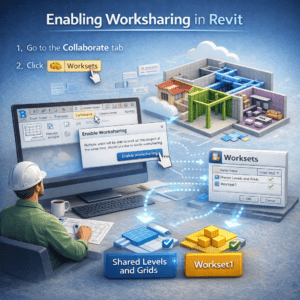
Before using worksets, worksharing must be enabled in the project.
Steps to Enable Worksharing
-
Open your Revit project.
-
Go to the Collaborate tab.
-
Click Worksets.
-
Revit will prompt you to enable worksharing.
-
Once enabled, the project automatically creates two default worksets.
These default worksets are:
-
Shared Levels and Grids
-
Workset1
After enabling worksharing, the project becomes a collaborative model that can support multiple users.
Types of Worksets in Revit
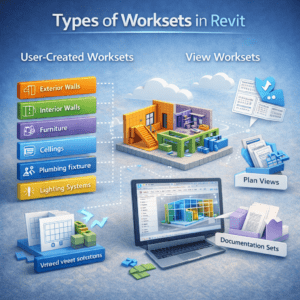
Worksets can be organized in different ways depending on the project workflow. Generally, there are two main types of worksets used in projects.
User-Created Worksets
These are custom worksets created by team members to organize the model.
Common examples include:
-
Exterior walls
-
Interior walls
-
Furniture
-
Ceilings
-
Plumbing fixtures
-
Lighting systems
Dividing the model into logical worksets makes it easier to control visibility and editing permissions.
View Worksets
In some projects, teams create worksets specifically for views and sheets. This helps manage large documentation sets and improves project organization.
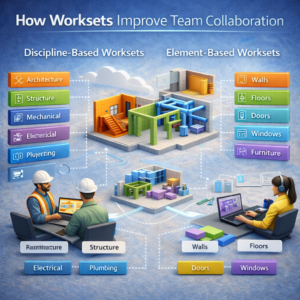
How Worksets Improve Team Collaboration
Large BIM projects often involve multiple disciplines working together. Without proper organization, the model can become difficult to manage.
Worksets help solve this challenge by dividing responsibilities among team members.
Discipline-Based Worksets
Many teams organize worksets according to disciplines.
Example structure:
-
Architecture
-
Structure
-
Mechanical
-
Electrical
-
Plumbing
Each discipline can focus on their workset while coordinating with other teams through linked models.
Element-Based Worksets
Another method is organizing worksets by building components.
For example:
-
Walls
-
Floors
-
Doors
-
Windows
-
Furniture
This approach works well in smaller teams where responsibilities are shared.
Working with the Central Model
In collaborative environments, the central model plays a crucial role.
Creating the Central Model
Once worksharing is enabled, the model must be saved as a central file on a shared location.
This location could be:
-
A network server
-
BIM 360
-
Autodesk Construction Cloud
Team members then create local files from the central model.
Synchronizing with Central
As users make changes in their local models, they periodically synchronize with the central model.
Synchronization allows:
-
Uploading your changes
-
Downloading updates made by other team members
-
Keeping the project coordinated
Frequent synchronization helps avoid conflicts and ensures everyone works with the latest data.
Borrowing and Ownership in Worksets
Revit automatically manages editing permissions using a system called element borrowing.
What is Element Borrowing?
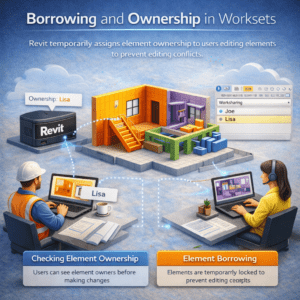
When a user edits an element, Revit temporarily assigns ownership of that element to the user. This prevents other users from modifying the same object simultaneously.
For example, if one user edits a wall, another user cannot edit that wall until the first user synchronizes or releases ownership.
Checking Element Ownership
Users can see who owns an element by selecting it. Revit displays ownership information, allowing team members to coordinate before making changes.
This feature helps reduce editing conflicts in collaborative projects.
Best Practices for Using Worksets
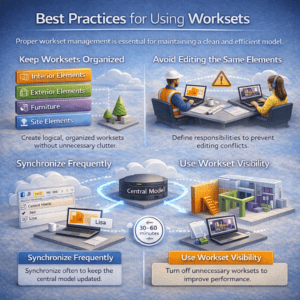
Proper workset management is essential for maintaining a clean and efficient model.
Keep Worksets Organized
Avoid creating too many worksets. Excessive worksets can make the model difficult to manage.
Instead, create logical groups such as:
-
Interior elements
-
Exterior elements
-
Furniture
-
Site elements
Avoid Editing the Same Elements
Communication within the team is important. If two users attempt to modify the same elements, it can slow down the workflow.
Teams should clearly define responsibilities to minimize conflicts.
Synchronize Frequently
Frequent synchronization keeps the central model updated and prevents major conflicts later in the project.
Many BIM managers recommend synchronizing every 30 to 60 minutes during active work.
Use Workset Visibility
Worksets also help improve performance by controlling visibility.
Users can turn off unnecessary worksets when working on specific tasks. This reduces model load and improves navigation speed.
Common Collaboration Issues in Revit
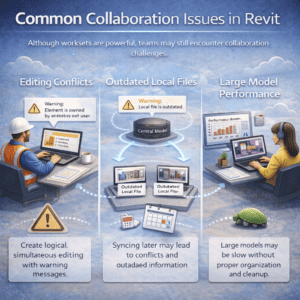
Although worksets are powerful, teams may still encounter collaboration challenges.
Editing Conflicts
Sometimes users attempt to modify elements owned by someone else. In this case, Revit will display a warning message.
The best solution is communication between team members.
Outdated Local Files
If a user does not synchronize frequently, their local file may become outdated.
This can lead to conflicts when synchronizing later.
Large Model Performance
Large models with many users can become slow. Proper workset organization and model cleanup can help maintain performance.
Worksets in Cloud Collaboration
Modern BIM workflows increasingly use cloud platforms for collaboration.
Revit supports cloud-based collaboration through Autodesk Construction Cloud.
Benefits of Cloud Collaboration
Cloud collaboration provides several advantages:
-
Team members can work from different locations
-
Models are securely stored online
-
Real-time collaboration improves coordination
-
Version control reduces errors
This approach is particularly useful for international teams working on large projects.
Conclusion
Worksets & Collaboration in Revit are among the most important features for managing collaborative BIM workflows in Autodesk Revit. They allow project teams to divide a model into manageable sections, assign responsibilities to different users, and work on the same project simultaneously without conflicts.
By understanding how Worksets & Collaboration in Revit operate alongside worksharing and central models, teams can greatly improve efficiency, coordination, and productivity in BIM projects.
Effective teamwork in Revit requires not only powerful tools but also clear communication and well-organized workflows. When implemented correctly, Worksets & Collaboration in Revit enable teams to manage even complex building models with greater control and confidence.
As BIM projects continue to increase in size and complexity, mastering Worksets & Collaboration in Revit has become an essential skill for architects, engineers, and BIM professionals.